> ## Documentation Index
> Fetch the complete documentation index at: https://help.4thewords.com/llms.txt
> Use this file to discover all available pages before exploring further.
# Friends & Chat
> Add friends, send messages, share items, and motivate your writing partners.
## Overview
4thewords is more fun with company. The Friends system lets you connect with other Dust Warriors, keep tabs on their writing progress, send encouragement, and have private conversations. You can also send real in-game items as reactions inside a chat, which transfers the item from your inventory to theirs.
## How It Works
### Your Friends List
> **Where to find it:** Left sidebar → **Account** → **Friends** [Open in 4TW ↗](https://app.4thewords.com/account/friends)
 This is your home base for all things friends. Each friend card shows their current writing streak, words written today, last activity, and where they're adventuring right now.
* **Grid / List view.** Switch layouts using the dropdown at the top right.
* **Search friends.** Filter your list by name.
* **Send message.** Tap on any friend card to open a private chat.
### Adding a Friend
This is your home base for all things friends. Each friend card shows their current writing streak, words written today, last activity, and where they're adventuring right now.
* **Grid / List view.** Switch layouts using the dropdown at the top right.
* **Search friends.** Filter your list by name.
* **Send message.** Tap on any friend card to open a private chat.
### Adding a Friend
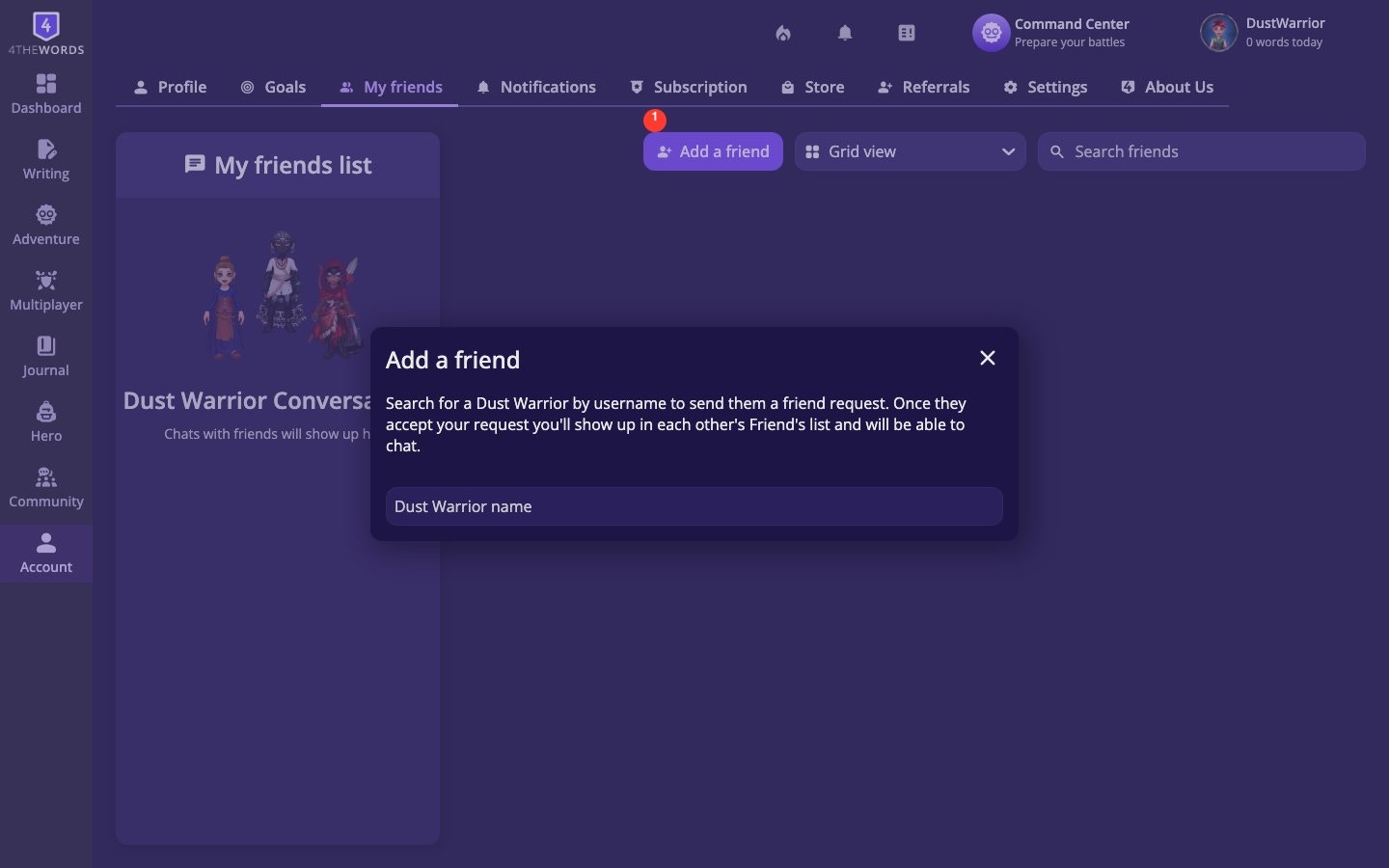 1. From your Friends list, tap **Add a friend**.
2. Search for the Dust Warrior you want to connect with by their username.
3. Send them a friend request. They'll see it in their pending requests.
4. Once they **accept**, they'll appear in your friends list, and you'll be able to chat.
You can't send messages to someone until they've accepted your friend request. If chat isn't available yet, check whether your request is still pending.
### Accepting Friend Requests
Incoming requests appear at the top of your Friends page. You can **accept** or **decline** each one. Accepted friends are added to your list right away. You'll also get a notification if someone sent you a friend request.
### Favorites
Mark your closest writing companions as favorites to keep them easy to find. Tap the favorite icon on a friend's card to toggle it. Favorites are sorted to the top of your list.
### Motivating a Friend
See a friend who hasn't written today? Tap the motivation button on their card to send them a quick nudge. It's a one-tap gesture, no message needed, that lets them know you're cheering them on.
### Private Chat
1. From your Friends list, tap **Add a friend**.
2. Search for the Dust Warrior you want to connect with by their username.
3. Send them a friend request. They'll see it in their pending requests.
4. Once they **accept**, they'll appear in your friends list, and you'll be able to chat.
You can't send messages to someone until they've accepted your friend request. If chat isn't available yet, check whether your request is still pending.
### Accepting Friend Requests
Incoming requests appear at the top of your Friends page. You can **accept** or **decline** each one. Accepted friends are added to your list right away. You'll also get a notification if someone sent you a friend request.
### Favorites
Mark your closest writing companions as favorites to keep them easy to find. Tap the favorite icon on a friend's card to toggle it. Favorites are sorted to the top of your list.
### Motivating a Friend
See a friend who hasn't written today? Tap the motivation button on their card to send them a quick nudge. It's a one-tap gesture, no message needed, that lets them know you're cheering them on.
### Private Chat
 Left sidebar → **Account** → **Friends** → **Send message** on a friend's card
Or on mobile: **Messages** tab at the top of the Friends screen
Each conversation shows your message history with one friend. Messages load 20 at a time. Scroll up to load older ones.
1. Open a friend's chat by tapping **Send message** on their card.
2. Type your message and send.
3. Your conversation history is saved and waiting whenever you come back.
To remove a conversation from your view, use the remove option inside the chat. This only hides it for you. Your friend's copy stays intact.
### Chat Reactions: Sending Items
Left sidebar → **Account** → **Friends** → **Send message** on a friend's card
Or on mobile: **Messages** tab at the top of the Friends screen
Each conversation shows your message history with one friend. Messages load 20 at a time. Scroll up to load older ones.
1. Open a friend's chat by tapping **Send message** on their card.
2. Type your message and send.
3. Your conversation history is saved and waiting whenever you come back.
To remove a conversation from your view, use the remove option inside the chat. This only hides it for you. Your friend's copy stays intact.
### Chat Reactions: Sending Items
 Inside any private chat, you can send real items from your inventory directly to a friend as a reaction. These aren't just emojis. The items physically transfer to their inventory. You can collect Reactions from [Markets](/adventure/markets) across the adventure world.
1. **Open a chat** with a friend.
2. **Tap the reactions button** inside the conversation.
3. **Choose items** from your inventory to send.
4. **Items transfer** directly to your friend's inventory.
This is a great way to share reactions with friends.
## Frequently Asked Questions
Your request is probably still pending. You can only chat with friends once they've accepted. Ask them to check their Friends page for incoming requests.
No. Private messaging is friends-only. Send a friend request first and wait for it to be accepted.
The items you send come from your own inventory. Make sure you have what you want to give before sending. The transfer is real.
No. Removing a chat only hides it from your view. The other person's conversation is unaffected.
No plan-based limit. Friends is available to all players.
Confirm the friend request was accepted on both sides. Navigate to your Friends page and check if they appear under pending rather than in your main list.
Double-check the spelling of their username. Usernames are case-sensitive in the search.
You or your friend may have removed the conversation. Tap **Send message** again from their friend card to start a new one. Your friendship is still active.
**Back to the Community Hub**
Join the Forum, read community writing, vote in the Lookbook, and support fellow Dust Warriors.
Inside any private chat, you can send real items from your inventory directly to a friend as a reaction. These aren't just emojis. The items physically transfer to their inventory. You can collect Reactions from [Markets](/adventure/markets) across the adventure world.
1. **Open a chat** with a friend.
2. **Tap the reactions button** inside the conversation.
3. **Choose items** from your inventory to send.
4. **Items transfer** directly to your friend's inventory.
This is a great way to share reactions with friends.
## Frequently Asked Questions
Your request is probably still pending. You can only chat with friends once they've accepted. Ask them to check their Friends page for incoming requests.
No. Private messaging is friends-only. Send a friend request first and wait for it to be accepted.
The items you send come from your own inventory. Make sure you have what you want to give before sending. The transfer is real.
No. Removing a chat only hides it from your view. The other person's conversation is unaffected.
No plan-based limit. Friends is available to all players.
Confirm the friend request was accepted on both sides. Navigate to your Friends page and check if they appear under pending rather than in your main list.
Double-check the spelling of their username. Usernames are case-sensitive in the search.
You or your friend may have removed the conversation. Tap **Send message** again from their friend card to start a new one. Your friendship is still active.
**Back to the Community Hub**
Join the Forum, read community writing, vote in the Lookbook, and support fellow Dust Warriors.