> ## Documentation Index
> Fetch the complete documentation index at: https://help.4thewords.com/llms.txt
> Use this file to discover all available pages before exploring further.
# Writing Goals
> Set word count targets with deadlines for your account, files, or projects and track your progress.
## Overview
Goals give your writing a finish line. Set a word count target with a deadline for your account, a file, or a project. 4thewords tracks your progress, calculates your required words per day, and notifies you when you hit your target.
Goals are separate from your [Writing Streak](/writing/writing-streaks/overview). Your streak rewards showing up daily; goals reward reaching a total word count by a date you choose.
## How It Works
### Your Goals Page
> **Where to find it:** Left sidebar → **Account** → **Goals** [Open in 4TW ↗](https://app.4thewords.com/account/goals)
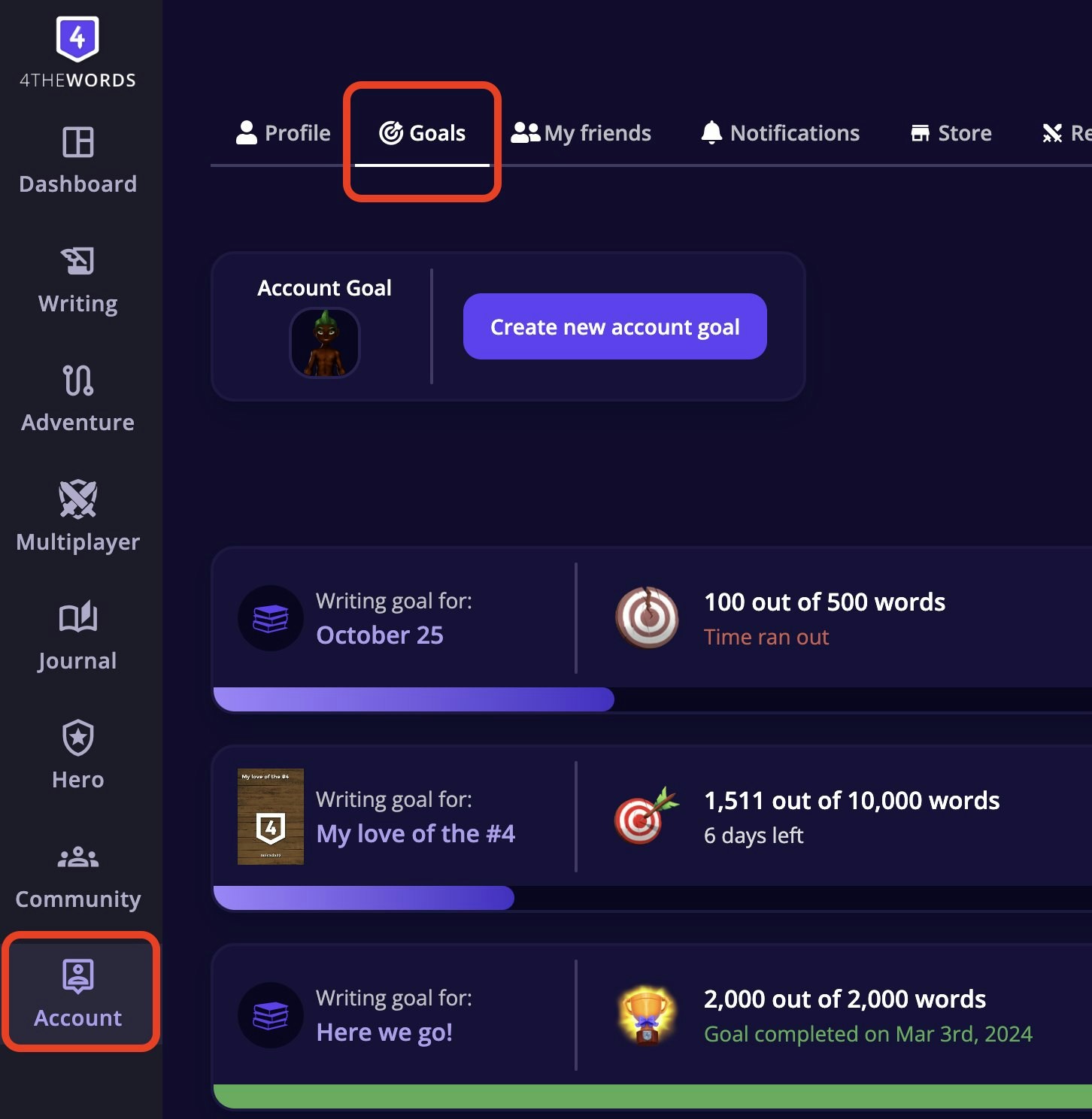 The Goals page shows:
* Your **Account Goal** at the top. Your big-picture writing target with a **Create new account goal** button
* A list of your goals below, each showing the linked file or project, word progress, days remaining, and status (completed, in progress, or time ran out)
* Progress bars that fill with color. Green for completed, purple for in progress
### Goal Types
Three types of goals, and they work together:
| Goal type | What counts | Limit |
| ------------ | ----------------------------------------------------------------------------------------- | ------------------------------------------------------------- |
| Account Goal | All words you write anywhere | One at a time. Can be displayed on your profile and in forums |
| File Goal | Words written in that specific file (also counts toward your Account Goal) | One per file |
| Project Goal | Words written in any file assigned to that project (also counts toward your Account Goal) | One per project |
**Start with an Account Goal**. All words count toward it, so it tracks itself as you play. Use **File Goals** for drafts with a target length (e.g., a 10,000-word short story). **Project Goals** only count files assigned to that project, so make sure your files are linked.
### How Words Are Counted
Goals count **new words only**. Words written before setting the goal don't apply. If your file already has 500 words and you set a 1,000-word goal, you need 1,000 fresh words.
Two rules that often surprise writers:
* **Deleted words still count.** Write 200 words, erase them, they still count. 4thewords credits you for the writing you did.
* **Copy/pasted words count too.** Pasting counts as words added if you've enabled Copy/Paste in your Account → Settings.
**Deadlines end at 11:59 PM in your local timezone**, so you have the full day to finish. Deadlines must be a future date.
### Creating a Goal
The Goals page shows:
* Your **Account Goal** at the top. Your big-picture writing target with a **Create new account goal** button
* A list of your goals below, each showing the linked file or project, word progress, days remaining, and status (completed, in progress, or time ran out)
* Progress bars that fill with color. Green for completed, purple for in progress
### Goal Types
Three types of goals, and they work together:
| Goal type | What counts | Limit |
| ------------ | ----------------------------------------------------------------------------------------- | ------------------------------------------------------------- |
| Account Goal | All words you write anywhere | One at a time. Can be displayed on your profile and in forums |
| File Goal | Words written in that specific file (also counts toward your Account Goal) | One per file |
| Project Goal | Words written in any file assigned to that project (also counts toward your Account Goal) | One per project |
**Start with an Account Goal**. All words count toward it, so it tracks itself as you play. Use **File Goals** for drafts with a target length (e.g., a 10,000-word short story). **Project Goals** only count files assigned to that project, so make sure your files are linked.
### How Words Are Counted
Goals count **new words only**. Words written before setting the goal don't apply. If your file already has 500 words and you set a 1,000-word goal, you need 1,000 fresh words.
Two rules that often surprise writers:
* **Deleted words still count.** Write 200 words, erase them, they still count. 4thewords credits you for the writing you did.
* **Copy/pasted words count too.** Pasting counts as words added if you've enabled Copy/Paste in your Account → Settings.
**Deadlines end at 11:59 PM in your local timezone**, so you have the full day to finish. Deadlines must be a future date.
### Creating a Goal
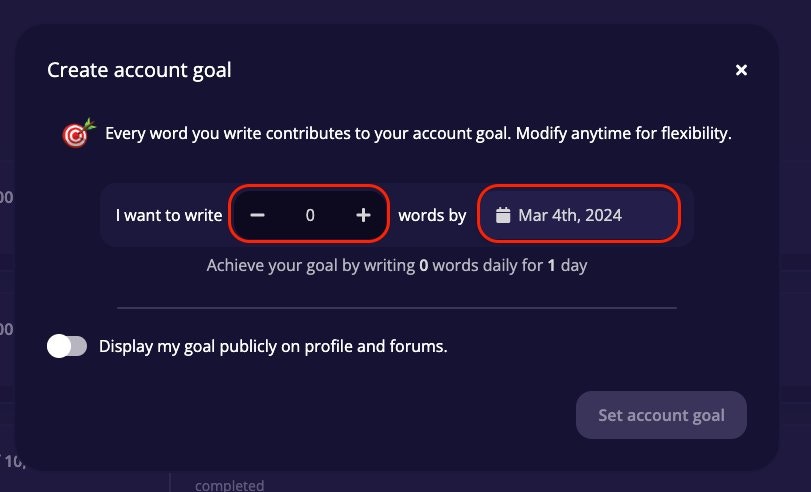 **To create your Account Goal:**
1. From your Goals page, tap **Create new account goal**.
2. Fill in: *I want to write* **\[number]** *words by* **\[date]**.
3. The game instantly shows your required **words per day** based on your target and deadline.
4. Optionally toggle **Display my goal publicly on profile and forums**.
5. Tap **Set account goal**.
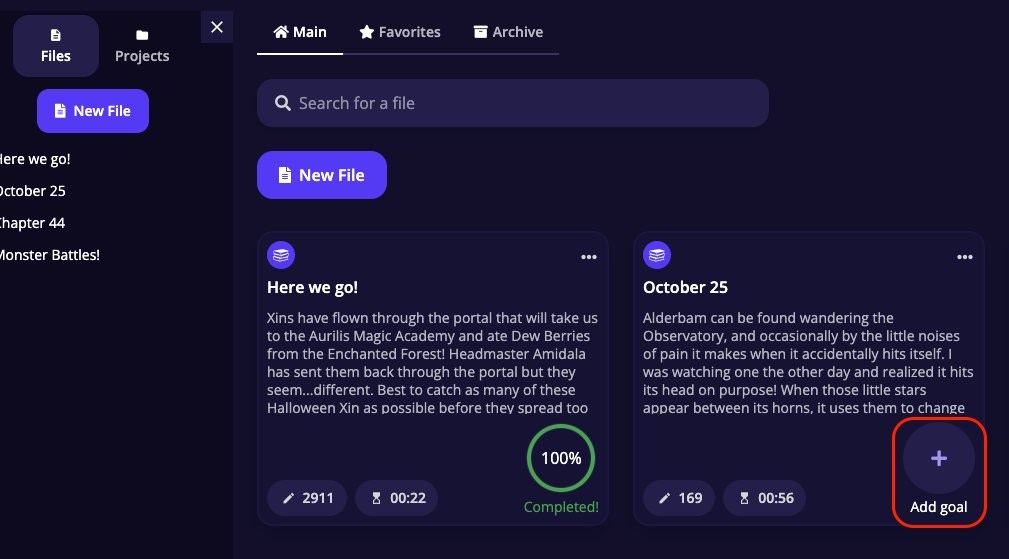
**To create a File Goal:**
From the Writing page, tap **Add goal** on the file's card.
**To create your Account Goal:**
1. From your Goals page, tap **Create new account goal**.
2. Fill in: *I want to write* **\[number]** *words by* **\[date]**.
3. The game instantly shows your required **words per day** based on your target and deadline.
4. Optionally toggle **Display my goal publicly on profile and forums**.
5. Tap **Set account goal**.
**To create a File Goal:**
From the Writing page, tap **Add goal** on the file's card.
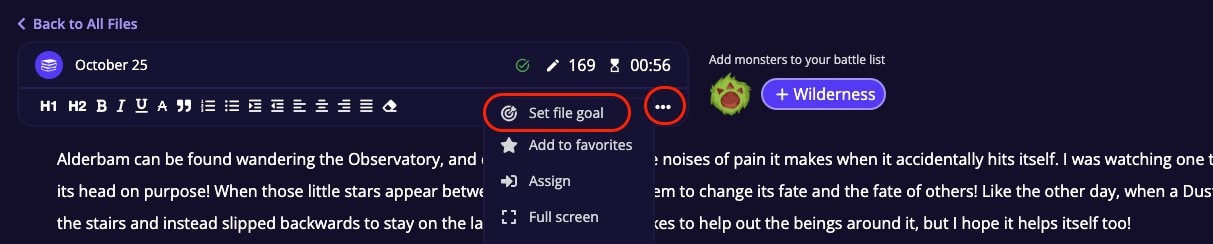
 Or open the file and use the **⋯** menu on the format bar → **Set file goal**.
 **To create a Project Goal:**
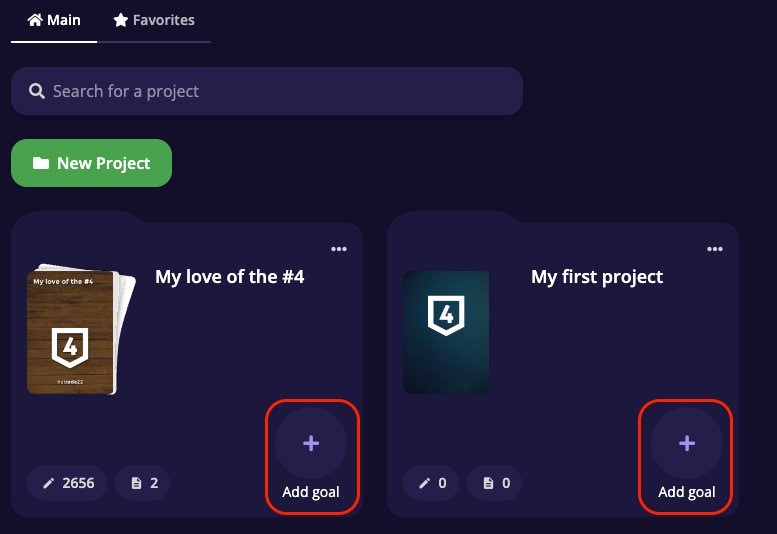
From the Writing Projects page, tap **Add goal** on the project card.
**To create a Project Goal:**
From the Writing Projects page, tap **Add goal** on the project card.
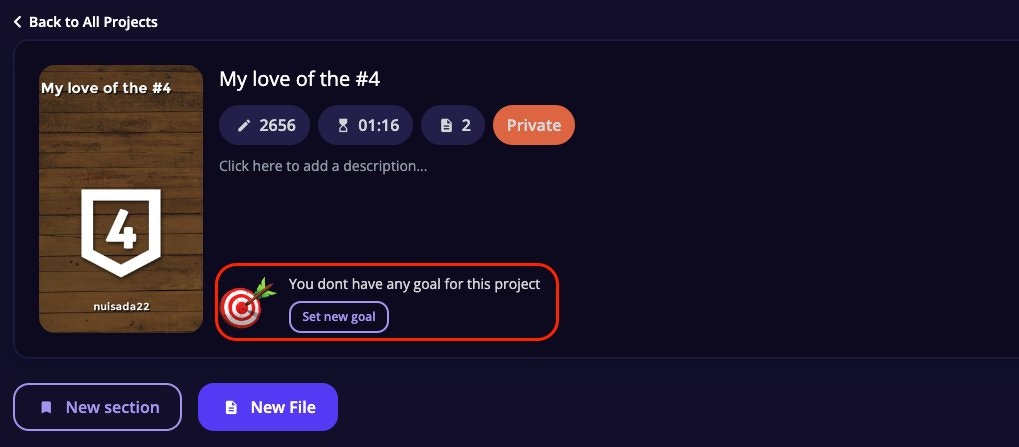
 Or open the project and tap **Set new goal** next to the cover image.
 The form is the same for all types, word count and deadline, but the goal is linked to that specific file or project.
**Daily words are calculated automatically.** Once you set a target and deadline, the game divides the remaining words by the days left and shows your daily requirement. This recalculates automatically if you modify the goal.
### Tracking Progress
The form is the same for all types, word count and deadline, but the goal is linked to that specific file or project.
**Daily words are calculated automatically.** Once you set a target and deadline, the game divides the remaining words by the days left and shows your daily requirement. This recalculates automatically if you modify the goal.
### Tracking Progress
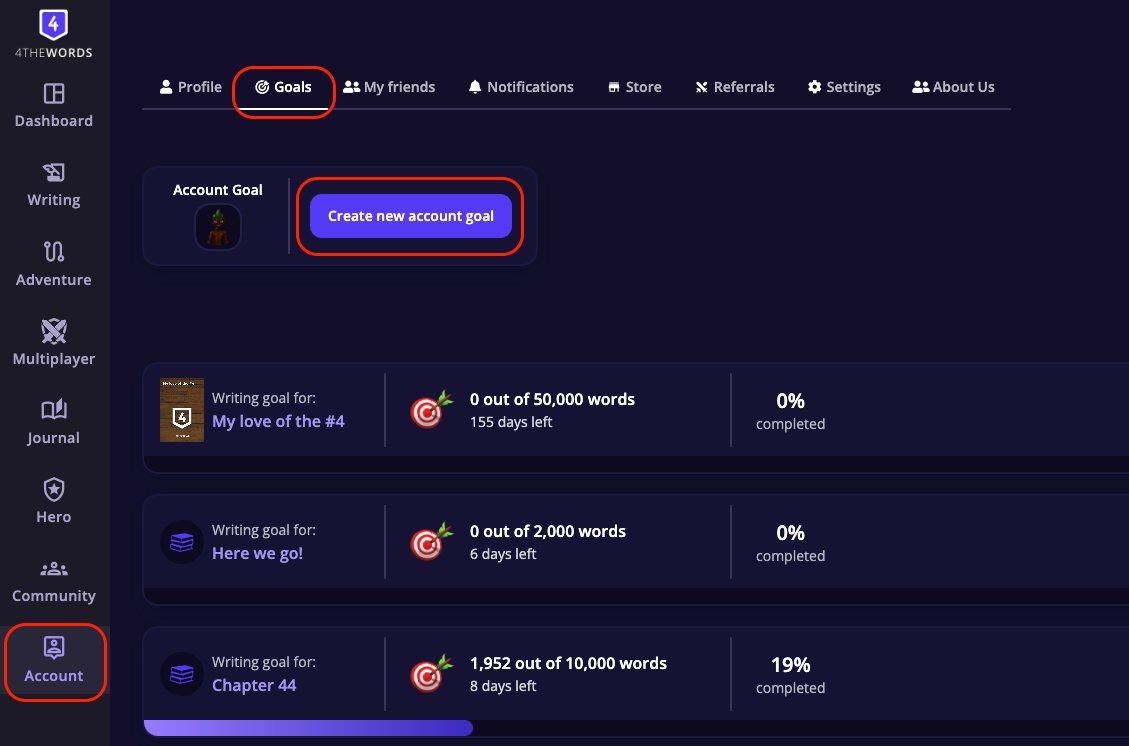 Each goal row shows:
* **Progress bar** with percentage complete
* **Words written** out of total (e.g. *1,200 out of 5,000 words*)
* **Days left**: hover to see the exact deadline date
* Status: currently active, **Goal completed!**, or **Time ran out**
**File goals also appear inside the editor.** A progress bar shows on the format bar. Hover to see details, or tap to edit the goal without leaving your document.
Use the **Filter** and **Sort** dropdowns to find specific goals:
| Dropdown | Options |
| ---------------- | --------------------------------------------------------------------------- |
| Filter by status | Current · Completed · Lost |
| Filter by type | Account · Files · Projects |
| Sort by | Most Time · Less Time · Progress Desc · Progress Asc · Most Recent · Oldest |
### Modifying a Goal
You can adjust a goal's word count target or deadline at any time while it's active. Tap **Edit** on any current goal row to open the editor.
Each goal row shows:
* **Progress bar** with percentage complete
* **Words written** out of total (e.g. *1,200 out of 5,000 words*)
* **Days left**: hover to see the exact deadline date
* Status: currently active, **Goal completed!**, or **Time ran out**
**File goals also appear inside the editor.** A progress bar shows on the format bar. Hover to see details, or tap to edit the goal without leaving your document.
Use the **Filter** and **Sort** dropdowns to find specific goals:
| Dropdown | Options |
| ---------------- | --------------------------------------------------------------------------- |
| Filter by status | Current · Completed · Lost |
| Filter by type | Account · Files · Projects |
| Sort by | Most Time · Less Time · Progress Desc · Progress Asc · Most Recent · Oldest |
### Modifying a Goal
You can adjust a goal's word count target or deadline at any time while it's active. Tap **Edit** on any current goal row to open the editor.
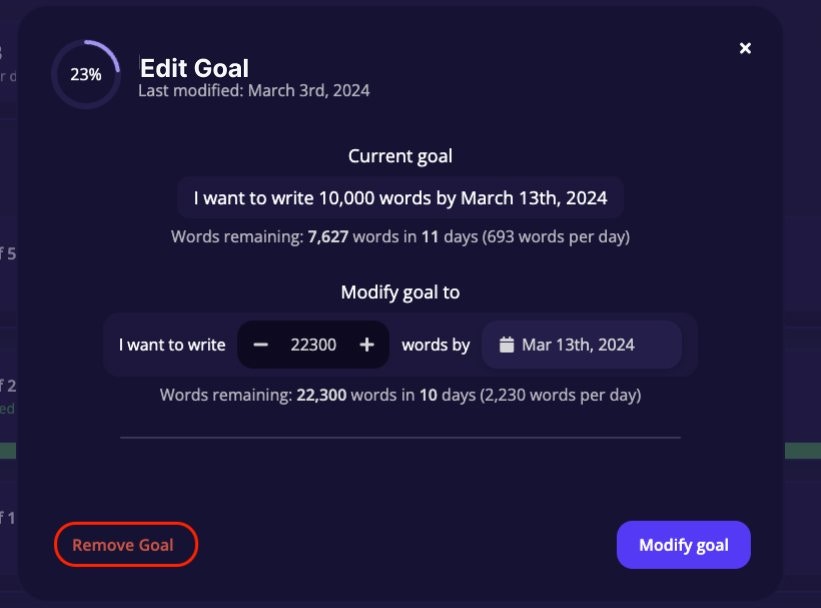
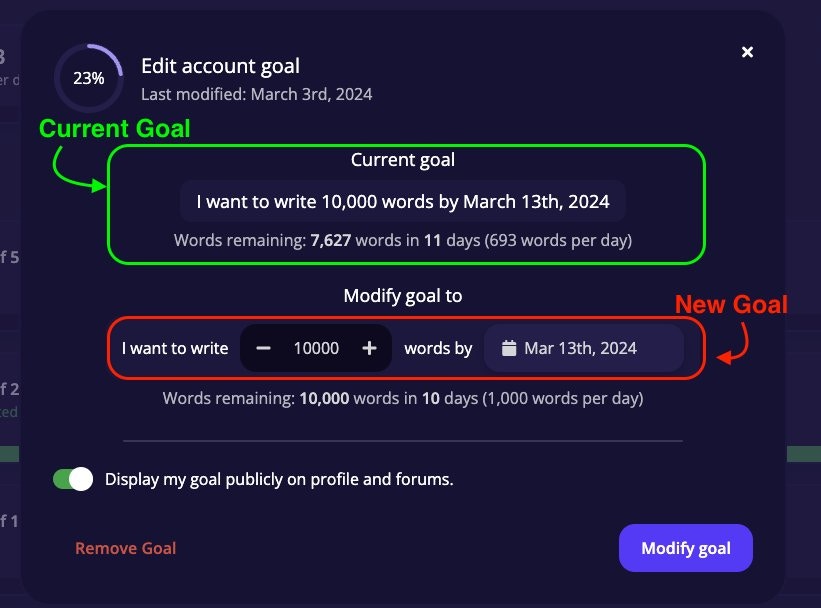 The editor shows your **current goal** at the top and a **Modify goal to** section below. Change the numbers, tap **Modify goal**, and the daily requirement recalculates immediately.
If your deadline slips, extend it rather than deleting. Progress is preserved and the daily requirement recalculates.
### Goal Statuses
| Status | What it means |
| ------------- | ----------------------------------------------------------------------------- |
| **Current** | Active and in progress |
| **Completed** | You hit 100%: the goal auto-completed when your word count reached the target |
| **Lost** | The deadline passed before you reached 100% |
The game sends three goal-related notifications:
* **Deadline approaching**: *"Only X days left to achieve your goal"*: a heads-up before time runs out so you can adjust or push harder
* **Goal completed**: *"Hooray! You achieved your goal"*: fires the moment you hit 100%
* **Goal lost**: lets you know the deadline passed, with a link to create a new goal and try again
Completed and lost goals stay in your list and can be filtered. Your history is always preserved.
### Sharing a Goal
Tap **Share** on any current or completed goal to generate a shareable link. Lost goals can't be shared.
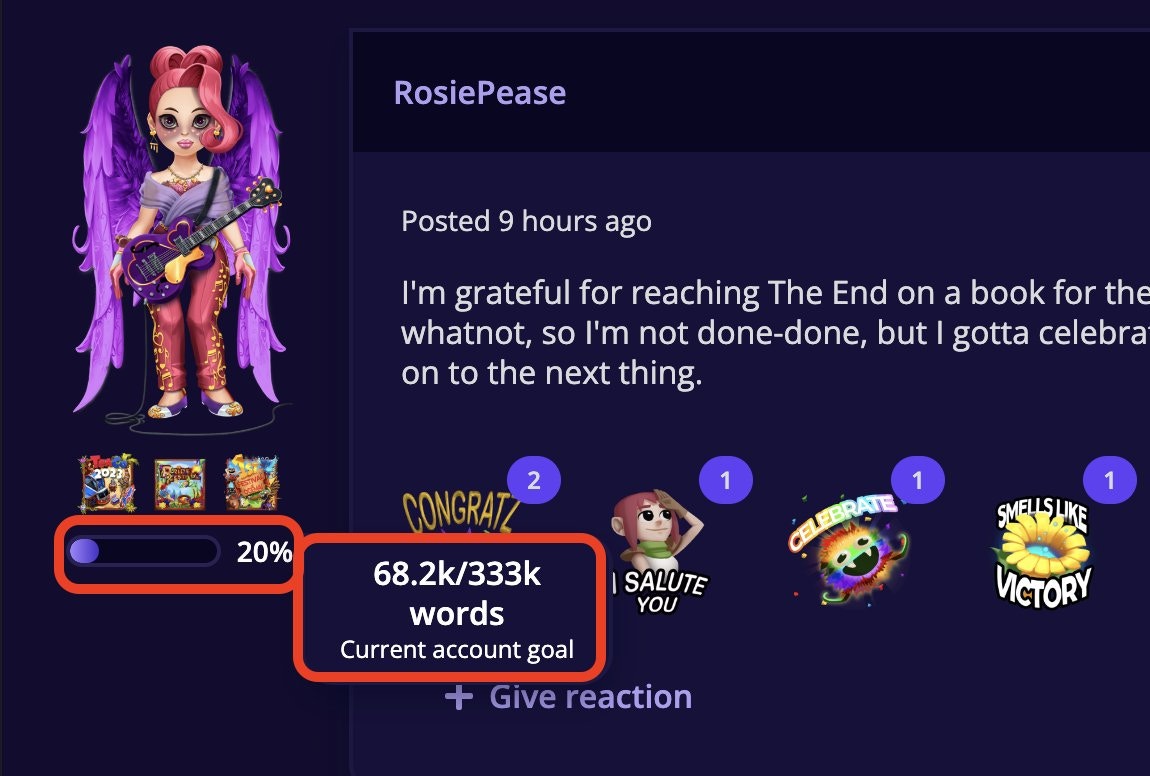
Your **Account Goal** also has a privacy toggle inside the editor: **Display my goal publicly on profile and forums.** When enabled, other players can see your account goal and your progress on your public profile.
The editor shows your **current goal** at the top and a **Modify goal to** section below. Change the numbers, tap **Modify goal**, and the daily requirement recalculates immediately.
If your deadline slips, extend it rather than deleting. Progress is preserved and the daily requirement recalculates.
### Goal Statuses
| Status | What it means |
| ------------- | ----------------------------------------------------------------------------- |
| **Current** | Active and in progress |
| **Completed** | You hit 100%: the goal auto-completed when your word count reached the target |
| **Lost** | The deadline passed before you reached 100% |
The game sends three goal-related notifications:
* **Deadline approaching**: *"Only X days left to achieve your goal"*: a heads-up before time runs out so you can adjust or push harder
* **Goal completed**: *"Hooray! You achieved your goal"*: fires the moment you hit 100%
* **Goal lost**: lets you know the deadline passed, with a link to create a new goal and try again
Completed and lost goals stay in your list and can be filtered. Your history is always preserved.
### Sharing a Goal
Tap **Share** on any current or completed goal to generate a shareable link. Lost goals can't be shared.
Your **Account Goal** also has a privacy toggle inside the editor: **Display my goal publicly on profile and forums.** When enabled, other players can see your account goal and your progress on your public profile.
 ### Removing a Goal
To delete an active goal, open it with **Edit** and tap **Remove Goal** at the bottom left. This removes it permanently.
### Removing a Goal
To delete an active goal, open it with **Edit** and tap **Remove Goal** at the bottom left. This removes it permanently.
 ## Frequently Asked Questions
Yes. Words count toward the file goal and your account goal at the same time. If the file is also in a project with a goal, they count toward all three.
The goal auto-completes and you get a notification. It moves to **Completed** status in your list. Set a new goal whenever you're ready.
A **Lost** goal means the deadline passed before you hit your target. The game marks it automatically, and it stays in your history. Deleting removes it entirely. Consider letting goals go to Lost status so you keep the record.
No. One active goal per file at a time. Once a file goal is completed or lost, you can create a new one for the same file.
Tap **Edit** and push the deadline further out. The required words per day drops immediately when you extend the timeframe.
Yes. Goals are available to all players regardless of subscription.
Words must be written in a file assigned to that project. Open the project and confirm the file appears there.
Use the **Filter** dropdown and select **Completed** or **Lost**. Goals in those statuses may be hidden under the default view.
Open the lost goal and tap **Create new goal** to set up a fresh target for the same file or project with a new deadline.
**Keep the momentum going**
Keep your consecutive streak alive, earn Wings and Medals, and repair missed days with Stempos.
Earn rewards every day by hitting word count and battle milestones.
Create files and projects, write in the distraction-free editor, and manage versions of your work.
## Frequently Asked Questions
Yes. Words count toward the file goal and your account goal at the same time. If the file is also in a project with a goal, they count toward all three.
The goal auto-completes and you get a notification. It moves to **Completed** status in your list. Set a new goal whenever you're ready.
A **Lost** goal means the deadline passed before you hit your target. The game marks it automatically, and it stays in your history. Deleting removes it entirely. Consider letting goals go to Lost status so you keep the record.
No. One active goal per file at a time. Once a file goal is completed or lost, you can create a new one for the same file.
Tap **Edit** and push the deadline further out. The required words per day drops immediately when you extend the timeframe.
Yes. Goals are available to all players regardless of subscription.
Words must be written in a file assigned to that project. Open the project and confirm the file appears there.
Use the **Filter** dropdown and select **Completed** or **Lost**. Goals in those statuses may be hidden under the default view.
Open the lost goal and tap **Create new goal** to set up a fresh target for the same file or project with a new deadline.
**Keep the momentum going**
Keep your consecutive streak alive, earn Wings and Medals, and repair missed days with Stempos.
Earn rewards every day by hitting word count and battle milestones.
Create files and projects, write in the distraction-free editor, and manage versions of your work.