

Overview
4thewords is more fun with company. The Friends system lets you connect with other Dust Warriors, keep tabs on their writing progress, send encouragement, and have private conversations. You can also send real in-game items as reactions inside a chat, which transfers the item from your inventory to theirs.How It Works
Your Friends List
Where to find it: Left sidebar → Account → Friends Open in 4TW ↗

- Grid / List view. Switch layouts using the dropdown at the top right.
- Search friends. Filter your list by name.
- Send message. Tap on any friend card to open a private chat.
Adding a Friend
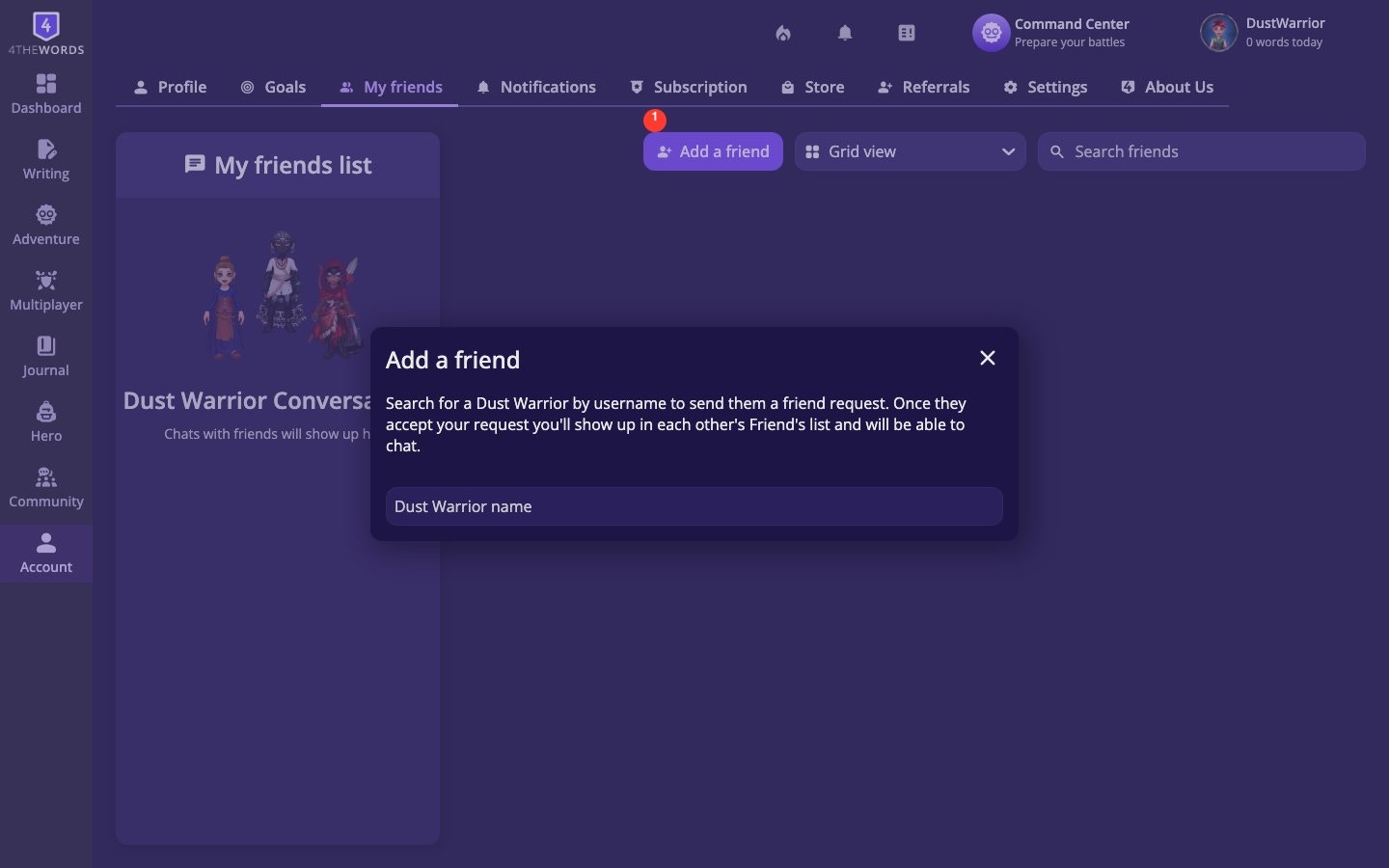
- From your Friends list, tap Add a friend.
- Search for the Dust Warrior you want to connect with by their username.
- Send them a friend request. They’ll see it in their pending requests.
- Once they accept, they’ll appear in your friends list, and you’ll be able to chat.
Accepting Friend Requests
Incoming requests appear at the top of your Friends page. You can accept or decline each one. Accepted friends are added to your list right away. You’ll also get a notification if someone sent you a friend request.Favorites
Mark your closest writing companions as favorites to keep them easy to find. Tap the favorite icon on a friend’s card to toggle it. Favorites are sorted to the top of your list.Motivating a Friend
See a friend who hasn’t written today? Tap the motivation button on their card to send them a quick nudge. It’s a one-tap gesture, no message needed, that lets them know you’re cheering them on.Private Chat

- Open a friend’s chat by tapping Send message on their card.
- Type your message and send.
- Your conversation history is saved and waiting whenever you come back.
Chat Reactions: Sending Items

- Open a chat with a friend.
- Tap the reactions button inside the conversation.
- Choose items from your inventory to send.
- Items transfer directly to your friend’s inventory.
Frequently Asked Questions
I sent a friend request but I still can't message them: what's wrong?
I sent a friend request but I still can't message them: what's wrong?
Your request is probably still pending. You can only chat with friends once they’ve accepted. Ask them to check their Friends page for incoming requests.
Can I send a message to any player, even if we're not friends?
Can I send a message to any player, even if we're not friends?
No. Private messaging is friends-only. Send a friend request first and wait for it to be accepted.
Do chat reactions cost anything?
Do chat reactions cost anything?
The items you send come from your own inventory. Make sure you have what you want to give before sending. The transfer is real.
If I remove a chat, does the other person lose their messages too?
If I remove a chat, does the other person lose their messages too?
No. Removing a chat only hides it from your view. The other person’s conversation is unaffected.
Is there a limit to how many friends I can have?
Is there a limit to how many friends I can have?
No plan-based limit. Friends is available to all players.
You can't find a specific player in the Friend Finder.
You can't find a specific player in the Friend Finder.
Double-check the spelling of their username. Usernames are case-sensitive in the search.
A chat you had before is no longer showing.
A chat you had before is no longer showing.
You or your friend may have removed the conversation. Tap Send message again from their friend card to start a new one. Your friendship is still active.
Community & Forum
Join the Forum, read community writing, vote in the Lookbook, and support fellow Dust Warriors.
Referrals
Bring friends who don’t play yet, become their mentor, and earn rewards together.