Overview
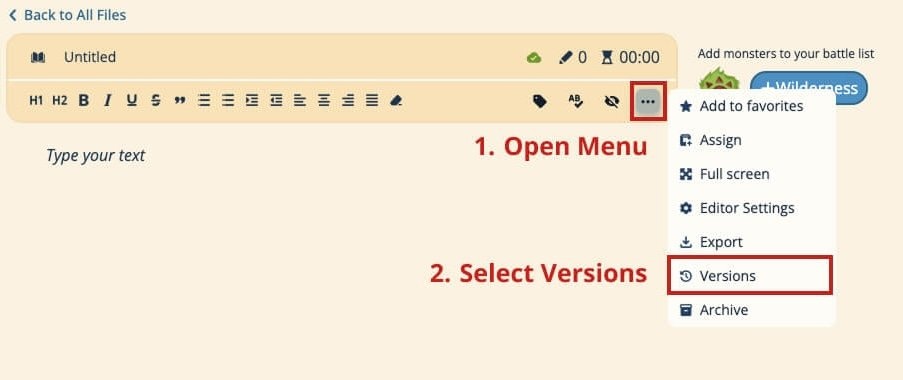
4thewords automatically saves a version of your document every 30 minutes while you’re writing. These saved snapshots are called File Versions, a running history of your file that lets you look back at earlier drafts, compare changes, or restore content you’ve edited away. A file you’ve worked on for 5 continuous hours would have up to 10 individual saved File Versions by the end of that session.Where to find it: Open any file → three-dot menu (⋯) on the format bar → Versions Open in 4TW ↗
How Versions Are Saved
- Auto-save every 30 minutes, but only if the file has been modified since the last save and has at least 1 word.
- No empty saves. Versions are not created for empty files or files with no new changes.
- No manual trigger. The 30-minute interval is automatic.
All files created after May 21, 2025 retain at least 1 saved version as a safety net, regardless of your plan or retention period. So you always have at least one recent backup even on a free account.
Regular Versions vs. Pinned Versions
Two kinds of File Versions: Regular versions are auto-saved snapshots. They are kept for a limited time based on your subscription plan, after which they are automatically deleted. Pinned versions are versions you’ve manually marked to keep. Pinned versions are never automatically deleted. They stay as long as you keep them pinned.Plan Limits
The Retention Period applies to regular (unpinned) versions. Pinned versions ignore this limit and are kept indefinitely until you unpin them.
Upgrading your plan extends retention for all existing versions. Downgrading does not immediately shorten retention. Versions saved while on a higher-tier plan keep their original expiry dates.
What You Can Do with File Versions
View Version History
Open the File Versions panel for any file to see a list of all saved versions, newest first. Each entry shows the date and time the version was saved, plus its expiration date.Read a Version
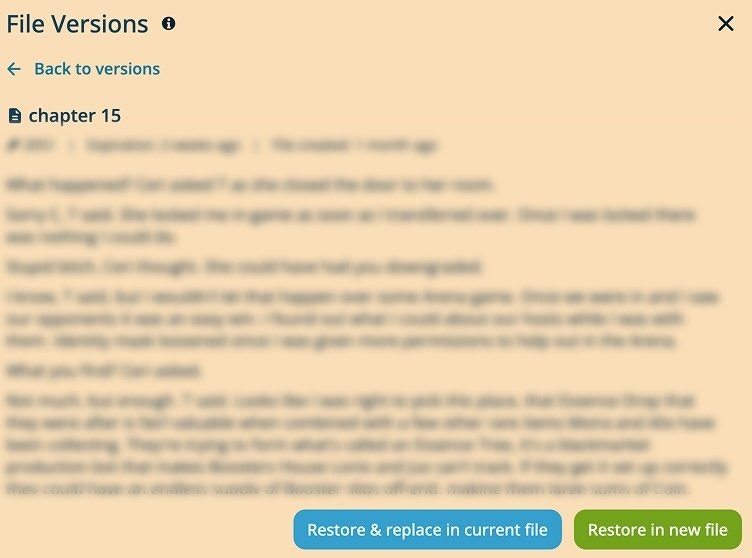
Select any version to open a read-only view of the file content at that point in time. Use this to review what the file looked like without making any changes.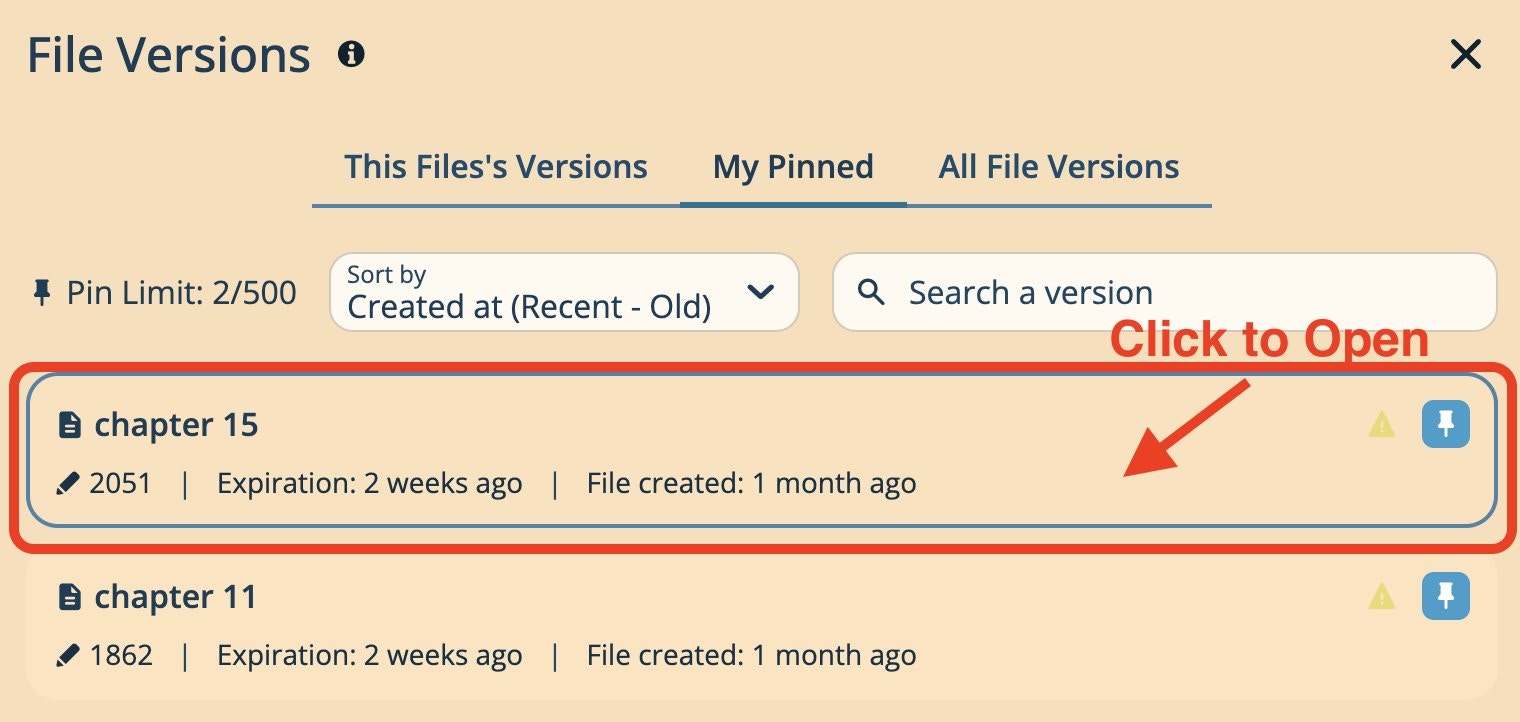
Restore a Version
You can restore any version back to an editable state in two ways:- Restore & replace in current file. Overwrites the current file content with the version’s content. The current state is not saved first, so use this carefully.
- Restore in new file. Creates a copy of your file with the version’s content. The copy appears in your file list as a new document. The original file is untouched.
Pin a Version
Click the pin icon on any version to mark it as pinned. Pinned versions won’t be auto-deleted when your retention period expires. Unpin a version to return it to normal. It will then be subject to automatic deletion based on your plan’s retention rules.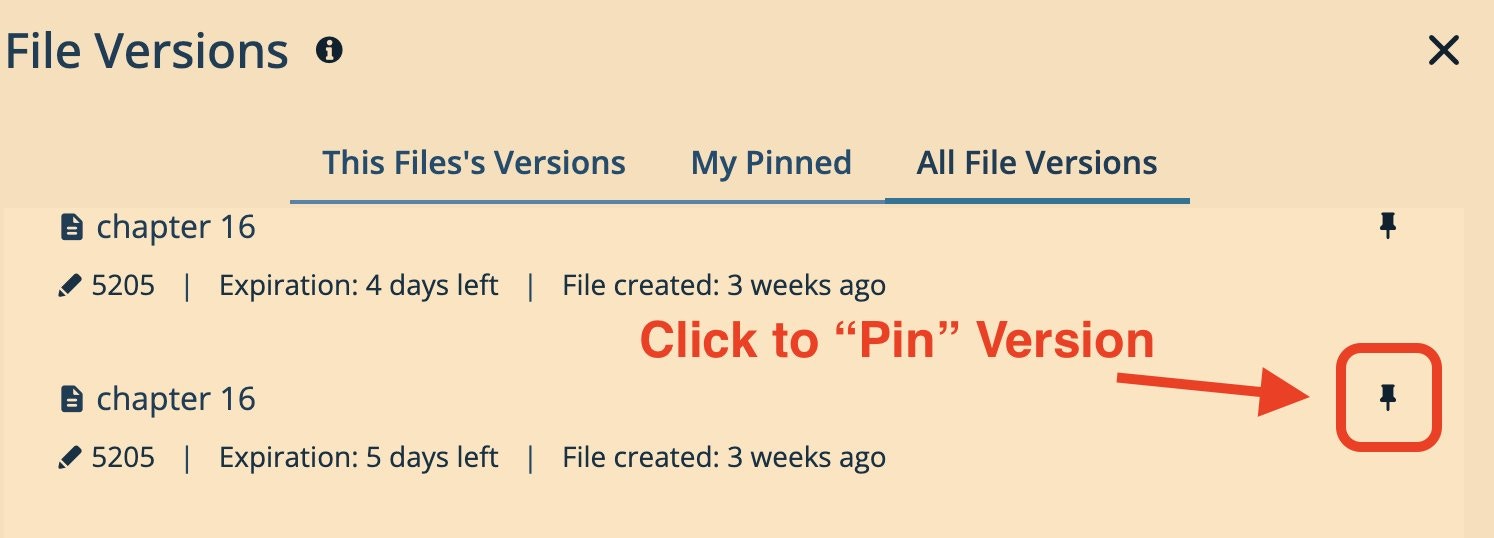
The File Versions Modal
The File Versions modal has three tabs: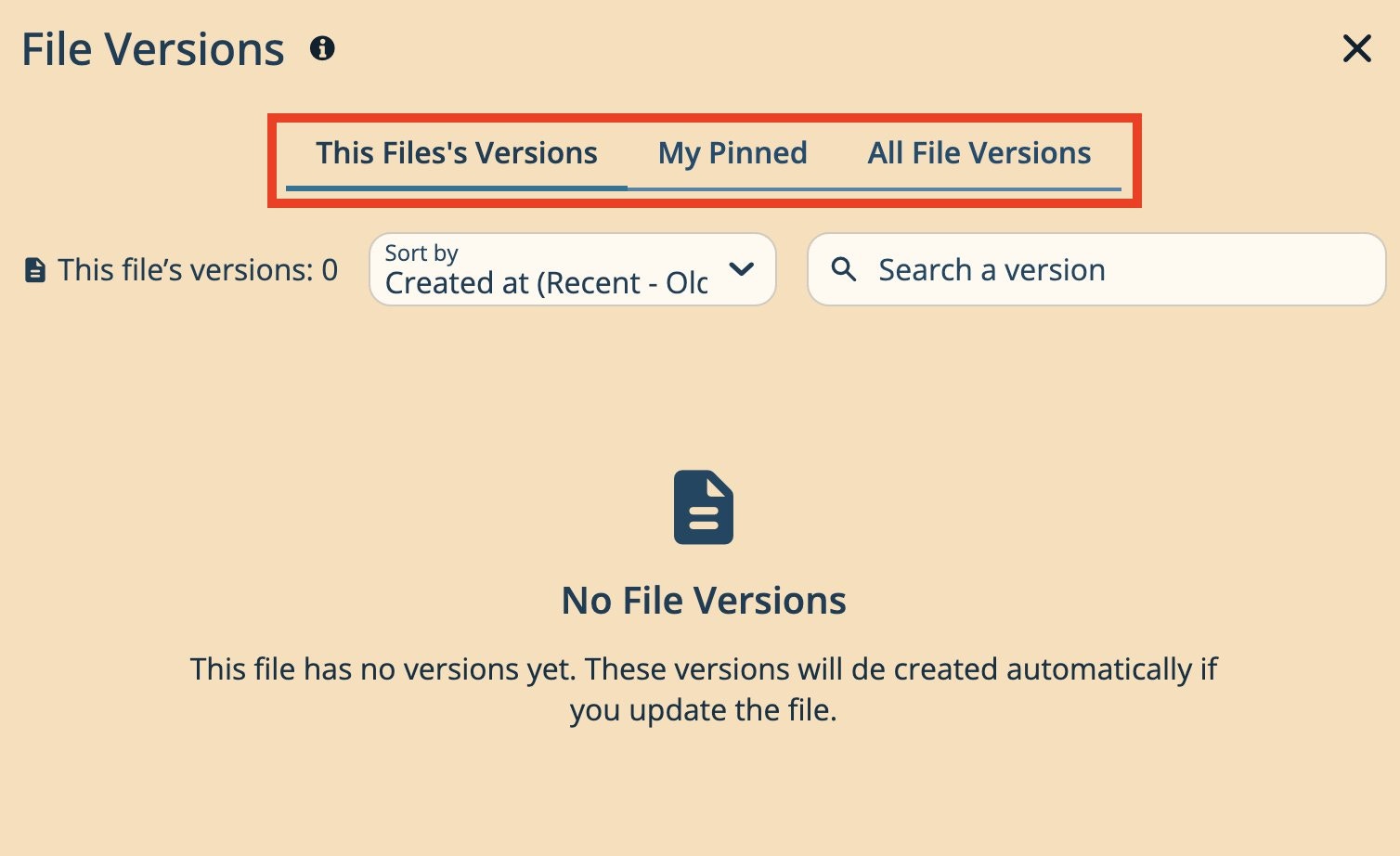
- This File’s Versions: all versions for the file you’re currently editing
- My Pinned: all versions across all your files that you’ve pinned
- All File Versions, a complete list grouped by file, showing how many versions each file has
Frequently Asked Questions
How often does the system save a version?
How often does the system save a version?
Every 30 minutes, as long as the file has been modified and has at least 1 word. No versions are created for unchanged or empty files.
Can I save a version manually?
Can I save a version manually?
No. Version creation is fully automatic on the 30-minute schedule.
What's the difference between pinning a version and restoring it?
What's the difference between pinning a version and restoring it?
Pinning keeps a version from being auto-deleted. The file itself is not changed. Restoring replaces your current file content (or creates a copy) with the content from that version.
Will I lose my current content if I restore a version?
Will I lose my current content if I restore a version?
If you choose “Restore & replace in current file,” yes. The current content is replaced. Use “Restore in new file” to create a copy and compare before deciding.
What happens to my versions if I downgrade my plan?
What happens to my versions if I downgrade my plan?
Your plan drops to a lower tier with a shorter retention period. However, versions saved while on a higher-tier plan keep their original expiry dates. They aren’t immediately deleted.
Can I delete a version manually?
Can I delete a version manually?
Pinned versions can be unpinned, which makes them eligible for automatic deletion. There is no direct manual delete. Unpinning and letting retention handle it is the standard workflow.
I'm over my pinned version limit: what do I do?
I'm over my pinned version limit: what do I do?
Unpin older versions you no longer need to free up slots. Your plan’s pinned version quota is the maximum number of pinned versions you can have at one time.
How long do file versions stay saved?
How long do file versions stay saved?
That depends on your plan. Free accounts keep versions for 30 days, Member for 6 months, Pro for 1 year, and Lifetime Pro for 3 years. You can pin a version to save it forever.
Can I pin versions to keep them forever?
Can I pin versions to keep them forever?
Yes. Each plan allows a certain number of pinned versions. Free gets 50, Member gets 200, Pro gets 500, and Lifetime Pro gets 1,000. Pinned versions never expire and are kept permanently.
I expected a version to be saved but don't see it.
I expected a version to be saved but don't see it.
Versions only save if the file was modified AND had at least 1 word during that 30-minute window. Check whether you made changes that were actually committed to the file. Also verify you’re looking at the correct file. Each file has its own separate version history.
Old versions I expected to still be there are gone.
Old versions I expected to still be there are gone.
Regular (unpinned) versions expire after your plan’s retention period. Free plan versions older than 30 days are automatically deleted. Pin versions you want to keep permanently.
Files
Create, edit, search, archive, and export your writing files.
Plans & Pricing
Compare plans including File Versions retention and pinned version limits.