

Overview
Goals give your writing a finish line. Set a word count target with a deadline for your account, a file, or a project. 4thewords tracks your progress, calculates your required words per day, and notifies you when you hit your target. Goals are separate from your Writing Streak. Your streak rewards showing up daily; goals reward reaching a total word count by a date you choose.How It Works
Your Goals Page
Where to find it: Left sidebar → Account → Goals Open in 4TW ↗
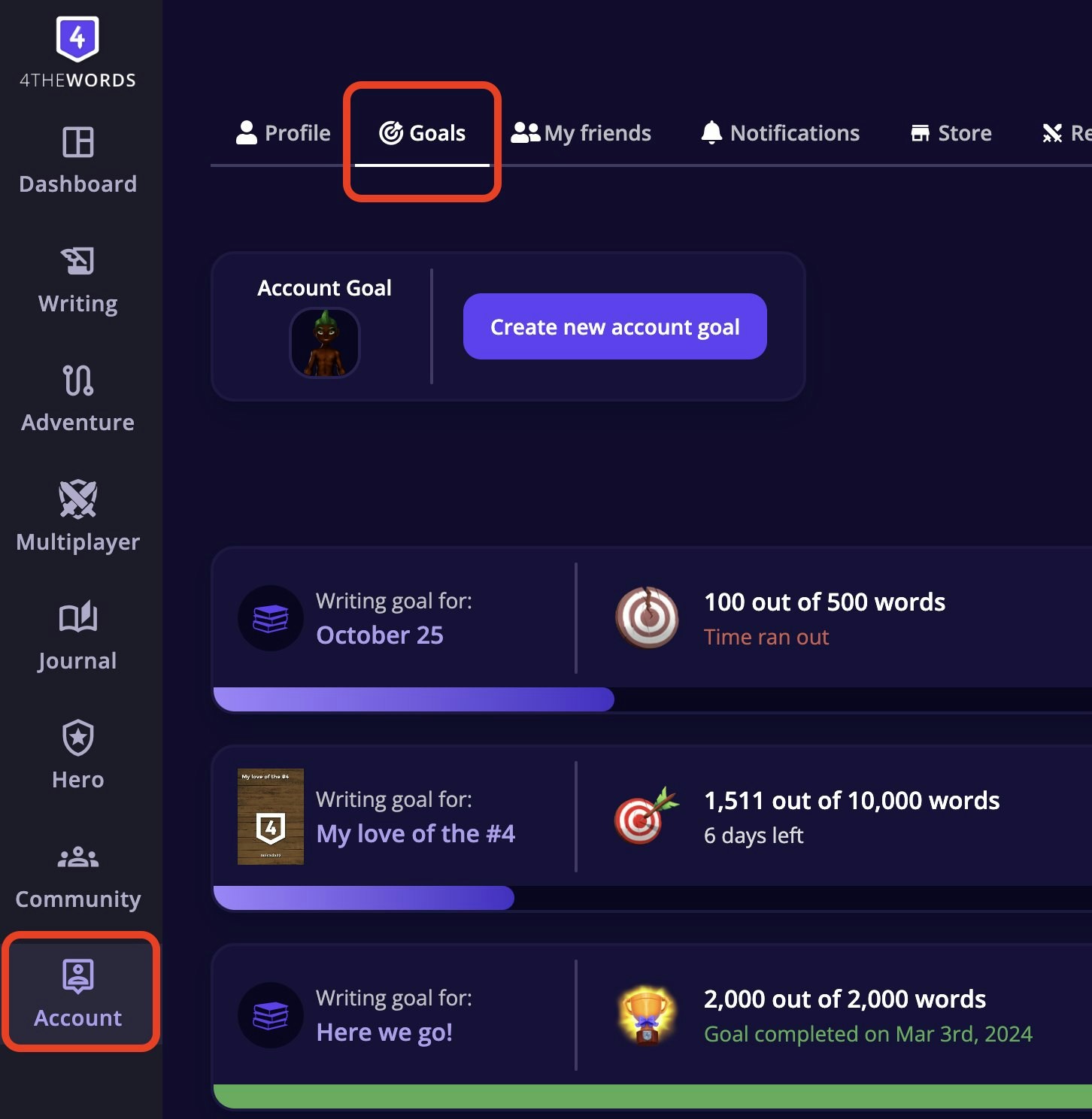
- Your Account Goal at the top. Your big-picture writing target with a Create new account goal button
- A list of your goals below, each showing the linked file or project, word progress, days remaining, and status (completed, in progress, or time ran out)
- Progress bars that fill with color. Green for completed, purple for in progress
Goal Types
Three types of goals, and they work together:How Words Are Counted
Goals count new words only. Words written before setting the goal don’t apply. If your file already has 500 words and you set a 1,000-word goal, you need 1,000 fresh words. Two rules that often surprise writers:- Deleted words still count. Write 200 words, erase them, they still count. 4thewords credits you for the writing you did.
- Copy/pasted words count too. Pasting counts as words added if you’ve enabled Copy/Paste in your Account → Settings.
Creating a Goal
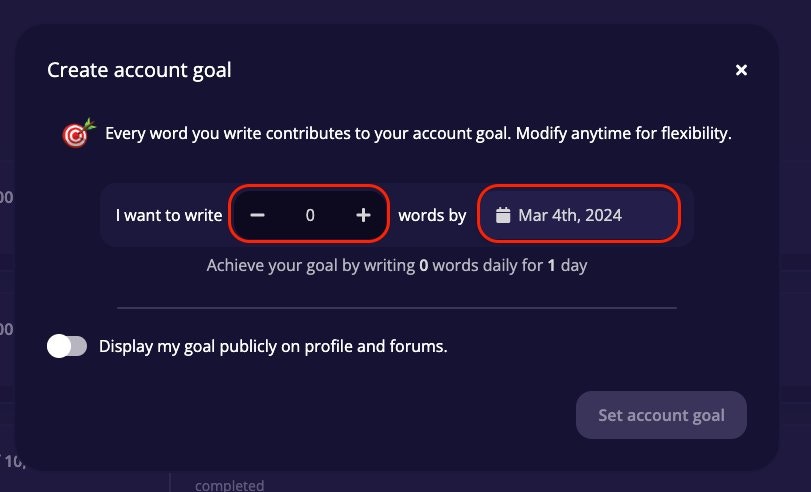
- From your Goals page, tap Create new account goal.
- Fill in: I want to write [number] words by [date].
- The game instantly shows your required words per day based on your target and deadline.
- Optionally toggle Display my goal publicly on profile and forums.
- Tap Set account goal.
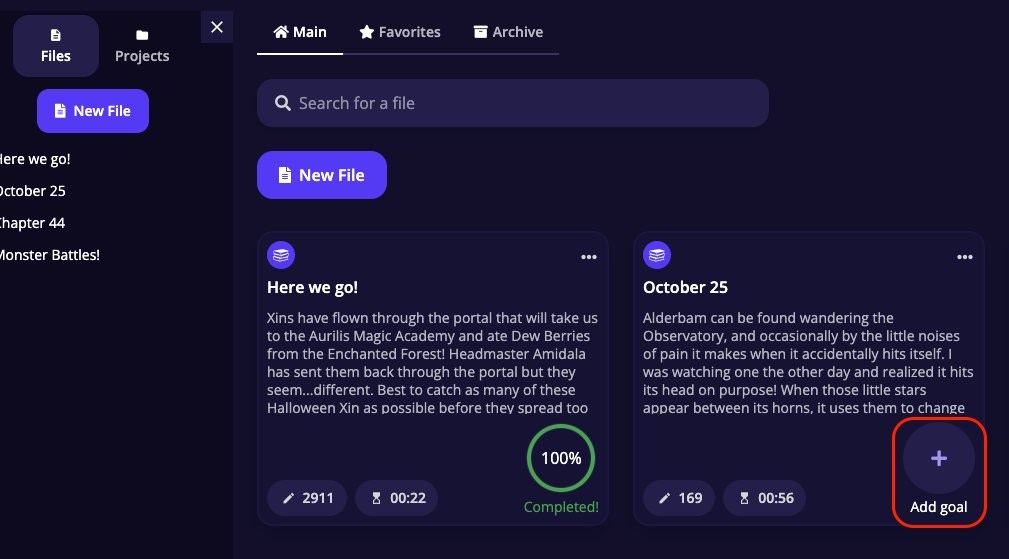
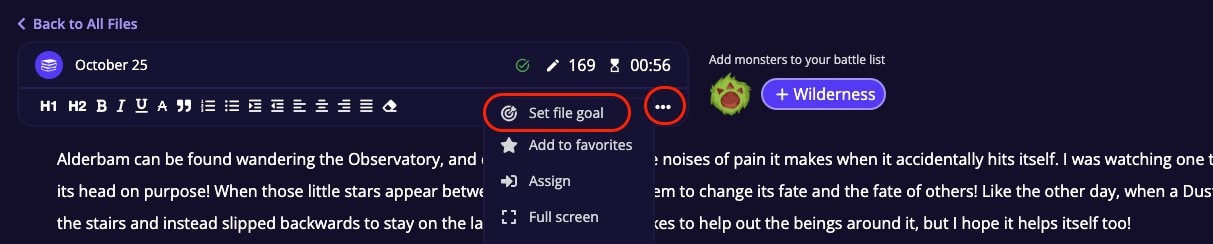

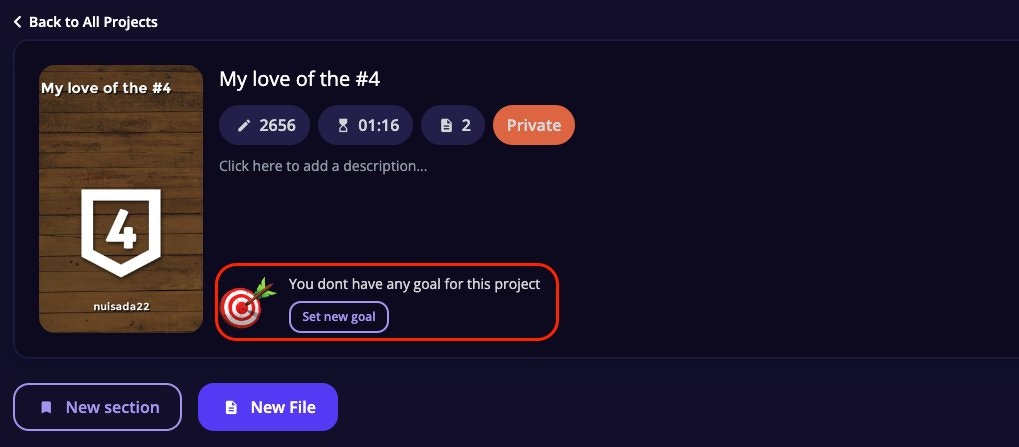
Daily words are calculated automatically. Once you set a target and deadline, the game divides the remaining words by the days left and shows your daily requirement. This recalculates automatically if you modify the goal.
Tracking Progress
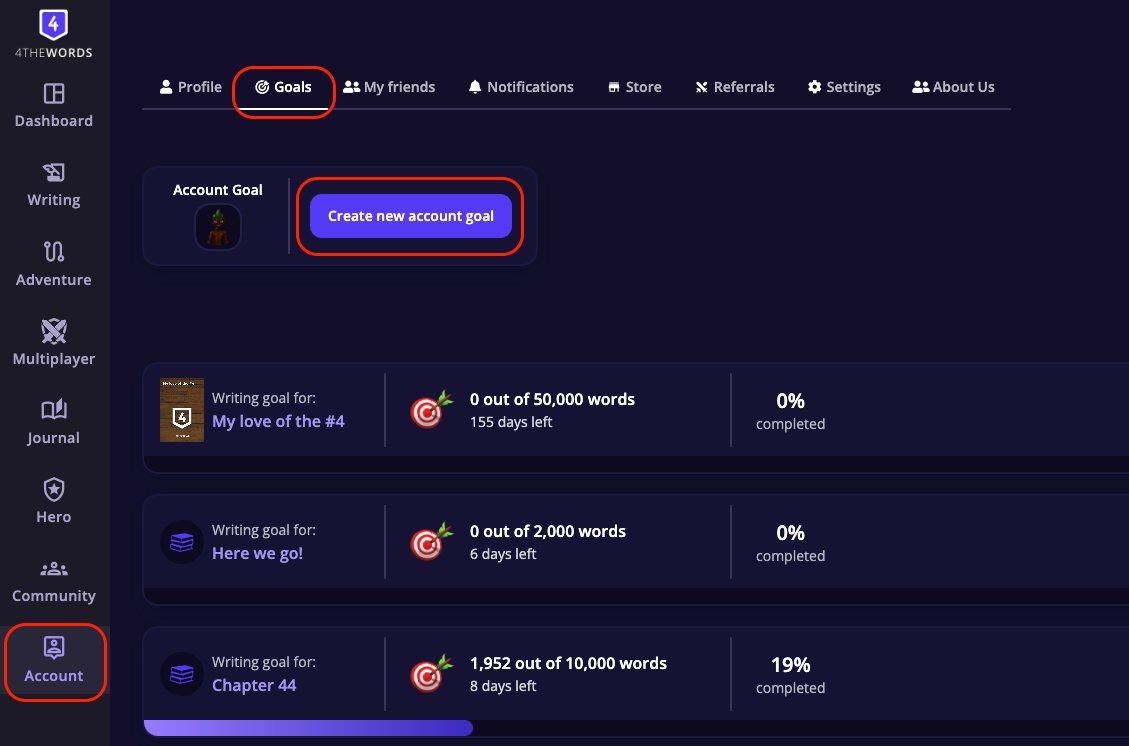
- Progress bar with percentage complete
- Words written out of total (e.g. 1,200 out of 5,000 words)
- Days left: hover to see the exact deadline date
- Status: currently active, Goal completed!, or Time ran out
Modifying a Goal
You can adjust a goal’s word count target or deadline at any time while it’s active. Tap Edit on any current goal row to open the editor.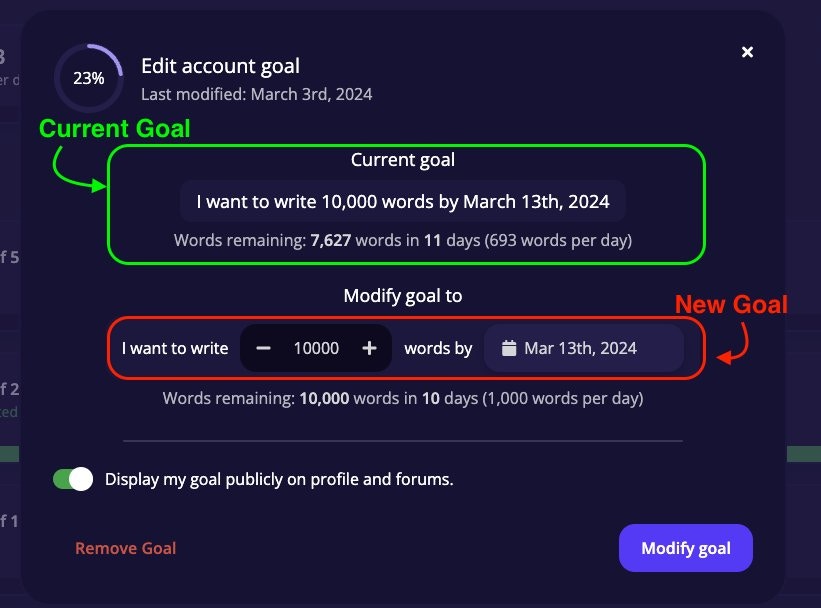
If your deadline slips, extend it rather than deleting. Progress is preserved and the daily requirement recalculates.
Goal Statuses
The game sends three goal-related notifications:
- Deadline approaching: “Only X days left to achieve your goal”: a heads-up before time runs out so you can adjust or push harder
- Goal completed: “Hooray! You achieved your goal”: fires the moment you hit 100%
- Goal lost: lets you know the deadline passed, with a link to create a new goal and try again
Sharing a Goal
Tap Share on any current or completed goal to generate a shareable link. Lost goals can’t be shared. Your Account Goal also has a privacy toggle inside the editor: Display my goal publicly on profile and forums. When enabled, other players can see your account goal and your progress on your public profile.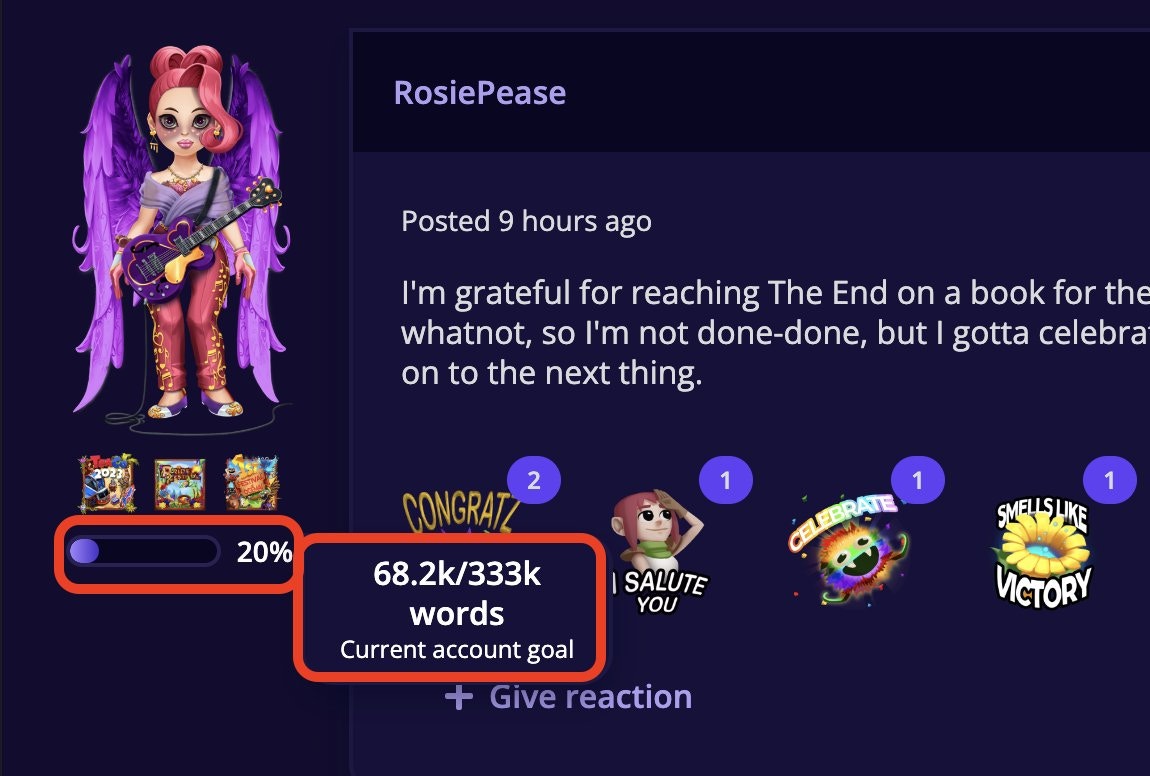
Removing a Goal
To delete an active goal, open it with Edit and tap Remove Goal at the bottom left. This removes it permanently.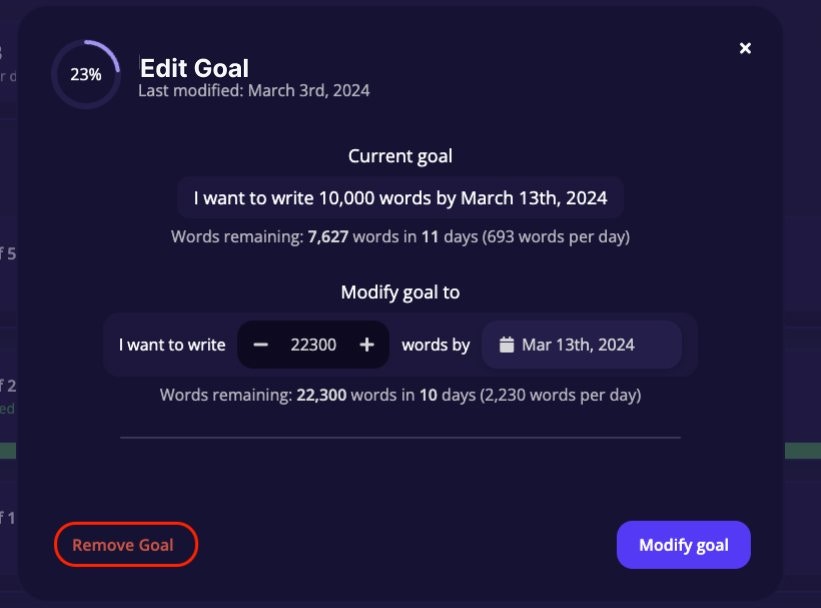
Frequently Asked Questions
Does my writing count toward multiple goals at once?
Does my writing count toward multiple goals at once?
Yes. Words count toward the file goal and your account goal at the same time. If the file is also in a project with a goal, they count toward all three.
What happens when I reach 100%?
What happens when I reach 100%?
The goal auto-completes and you get a notification. It moves to Completed status in your list. Set a new goal whenever you’re ready.
What's the difference between a Lost goal and deleting a goal?
What's the difference between a Lost goal and deleting a goal?
A Lost goal means the deadline passed before you hit your target. The game marks it automatically, and it stays in your history. Deleting removes it entirely. Consider letting goals go to Lost status so you keep the record.
Can I have more than one file goal on the same file?
Can I have more than one file goal on the same file?
No. One active goal per file at a time. Once a file goal is completed or lost, you can create a new one for the same file.
My daily word requirement seems very high: what should I do?
My daily word requirement seems very high: what should I do?
Tap Edit and push the deadline further out. The required words per day drops immediately when you extend the timeframe.
Are Goals available on all plans?
Are Goals available on all plans?
Yes. Goals are available to all players regardless of subscription.
Your project goal isn't updating even though you're writing.
Your project goal isn't updating even though you're writing.
Words must be written in a file assigned to that project. Open the project and confirm the file appears there.
You can't find an old goal in your list.
You can't find an old goal in your list.
Use the Filter dropdown and select Completed or Lost. Goals in those statuses may be hidden under the default view.
You want to restart a lost goal.
You want to restart a lost goal.
Open the lost goal and tap Create new goal to set up a fresh target for the same file or project with a new deadline.
Writing Streaks
Keep your consecutive streak alive, earn Wings and Medals, and repair missed days with Stempos.
Daily Challenges
Earn rewards every day by hitting word count and battle milestones.
Documents & Writing Editor
Create files and projects, write in the distraction-free editor, and manage versions of your work.