

Where to find it: 4thewords icon → My sites in the footer
How word counting works
The extension counts words as you type in any text field, input boxes, textareas, contenteditable areas, and canvas-based editors like Google Docs, Google Sheets, and Word on the web. It works the same as writing in the 4thewords editor: your word count deals damage, feeds your streak, and counts toward daily challenges.- Every word counts once. CJK characters (Chinese, Japanese, Korean) count as one word each.
- Pasted text counts too, unless you turn off Count pasted text in Settings.
- Sensitive fields are always skipped. Passwords, credit card numbers, OTP codes, and similar fields are never counted, no matter which site you’re on.
- Code editors are skipped. Embedded code editors are excluded, so scripting in a browser IDE doesn’t inflate your word count.
Writing sites count from day one
The extension ships with a starter list of writing-first sites already turned on: Google Docs, Notion, Substack, Medium, WordPress, Archive of Our Own, Overleaf, Evernote, Coda, 750words, Reedsy, Novlr, NovelPad, Campfire Writing, Ellipsus, World Anvil, and Word on the web. Type on any of them and your words count immediately, no setup needed. Starter entries match subdomains too, so a Substack entry covers your own publication atyourname.substack.com. Google is scoped to Google Docs specifically, which means Gmail and Search never count just because Docs does.
Email, social media, and AI chat sites are deliberately left off the starter list. They only count if you add them yourself.
Choosing which sites count (My sites)
1
Open My sites
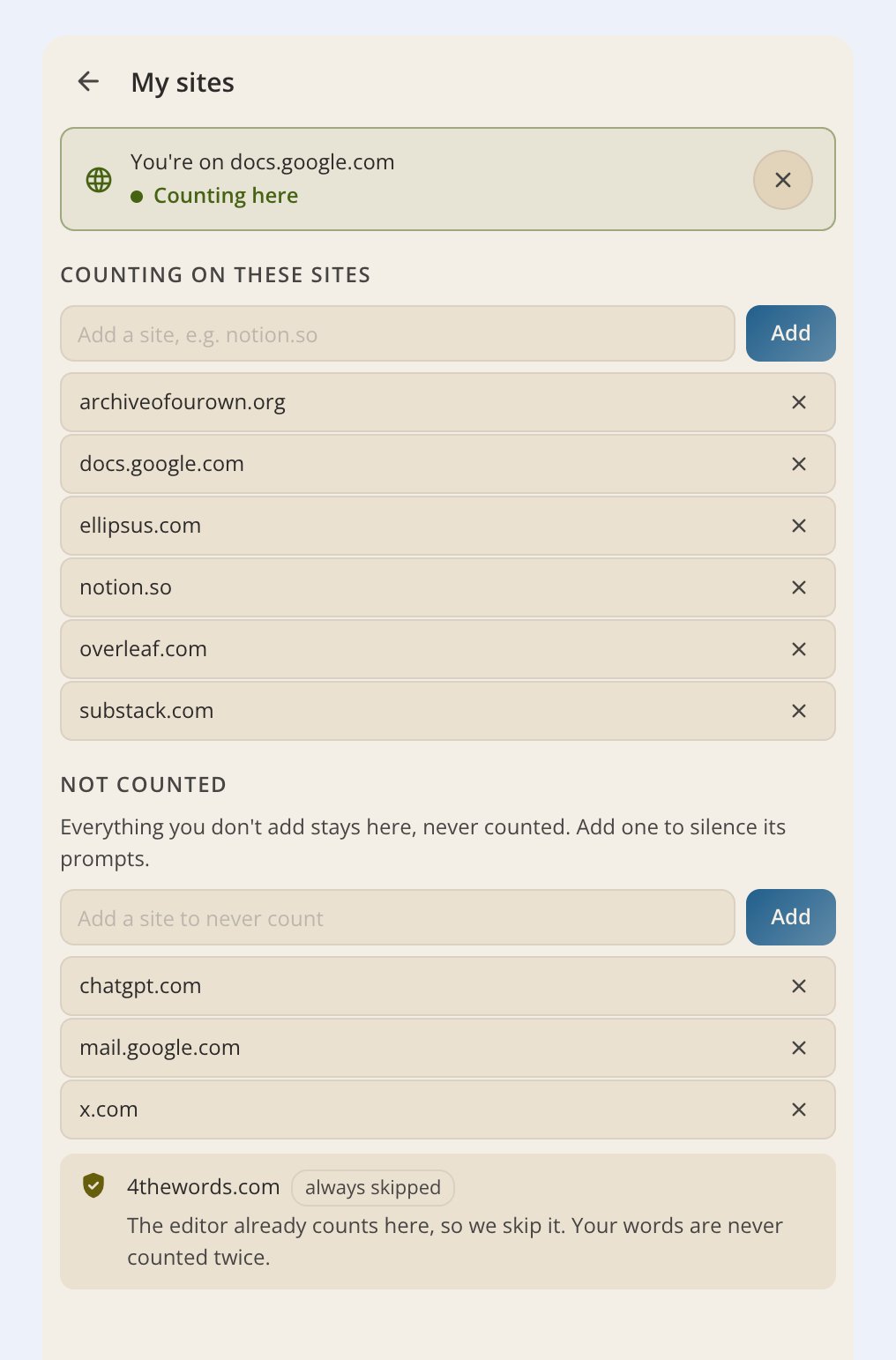
Click the 4thewords icon in your toolbar (or open the side panel), then click My sites in the footer.
2
Add the site you're on
The This site row at the top shows the site in your current tab. Click Count next to it and confirm, and it starts counting right away. No reload needed.
3
Add a site by name
Type a domain into the add field (for example
notion.so) and click Add.4
Remove a site
Find it under Counting on these sites and remove it. New words there stop counting immediately, and you can add it back any time.
Words by site and session stats
Where to find it: 4thewords icon → Stats in the footerOpen Stats from the footer to see where your words went. Two tabs sit at the top:
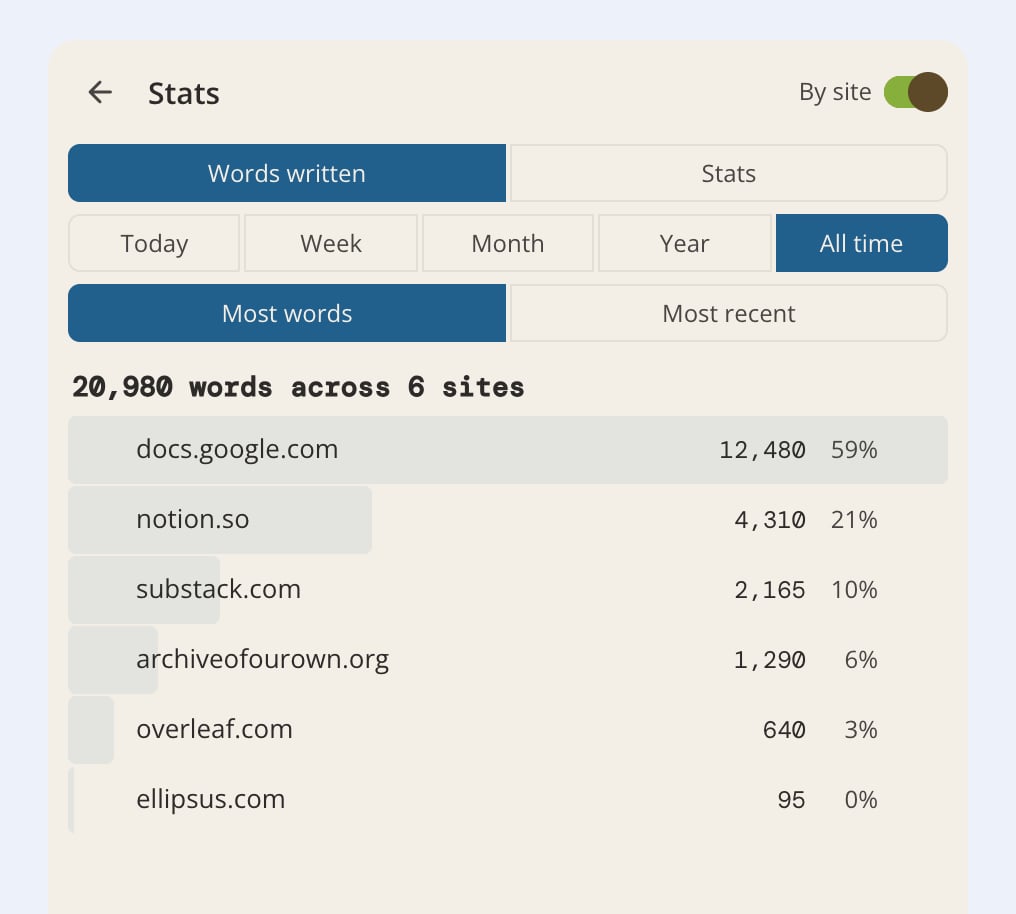
- Words written. Your totals by site, with each site’s share of the whole. Filter by Today, Week, Month, Year, or All time, and sort by most words or most recent.
- Stats. Your writing-session breakdown: time spent actively writing, pauses, and words typed versus pasted versus deleted.
The “By site” toggle
Per-site and per-document detail is off by default, controlled by the By site toggle in the Stats header.- Off (default): your synced data is numbers only. Site names and document names never leave your device.
- On: the extension includes where you wrote with your synced word counts, so the breakdown above shows real sites instead of blanks.
With By site on, three pieces of location data are sent along with your word counts: the domain (like “docs.google.com”), the document’s title on supported editors (like a Google Doc’s name), and a scrambled document identifier. The identifier is one-way hashed on your device with a random per-install key before it leaves, so 4thewords can tell “same document” from “different document” but can never recover the actual document address.The full URL and the text you wrote are never sent, on or off. Turn the toggle off and this stops immediately. See Permissions & Privacy.
Count pasted text
A toggle in Settings → Tracking controls whether pasted text counts toward your word total. It’s on by default. Turn it off if you want typed words only, useful if you frequently paste in text you didn’t personally write.Writing offline
Sync to 4thewords in Settings is on by default. Turn it off and the extension keeps counting your words locally without sending anything to your account. A banner reminds you that your progress isn’t being sent. Turn it back on to resume syncing.Frequently Asked Questions
My words aren't counting on a site I write on.
My words aren't counting on a site I write on.
Check the counting toggle at the top of the popup or side panel first, a gray toolbar icon means counting is paused. Then check My sites: if the site isn’t on your counted list, add it from the This site row or by typing the domain. Also check that Sync to 4thewords is on in Settings if the count looks right in the extension but not on your account.
Does my email count?
Does my email count?
Not by default. Email, social media, and AI chat sites are left off the starter list on purpose. Add your email domain in My sites and it counts like any other site.
Does the extension read what I write?
Does the extension read what I write?
No. It produces counts, never content. Your actual text is never read, stored, or sent anywhere.
What's the difference between not adding a site and adding it to 'Not counted'?
What's the difference between not adding a site and adding it to 'Not counted'?
Neither counts words. Adding a site to Not counted also silences its prompts, so you’re never asked about it again.
Do pasted words count toward my battle?
Do pasted words count toward my battle?
Yes, by default. If you don’t want pasted text to count, turn off Count pasted text in Settings → Tracking.
I typed in a password field by mistake. Was it counted?
I typed in a password field by mistake. Was it counted?
No. Password fields are excluded at several independent layers. Credit card, CVV, OTP and verification codes, SSN, bank routing and account numbers, API keys, and recovery codes are excluded the same way, as are plain number fields, regardless of your site settings.
Why are my site names blank in the Stats view?
Why are my site names blank in the Stats view?
The By site toggle in the Stats header is off, which is the default. It has to be on for the extension to record which sites your words came from. Data captured while it was off stays anonymous, so turning it on now won’t fill in the past.
Battles, Streaks & Quests Sync
See how your typed words flow into your active battle, streak, and Questbook.
Permissions & Privacy
What the extension can access, why, and what it never reads.