

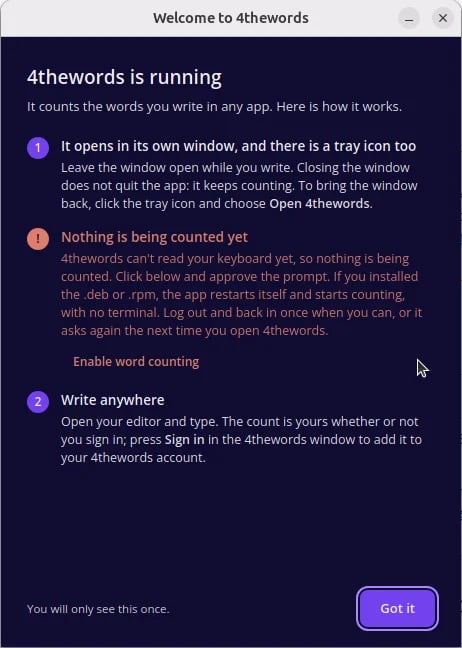
Why the keyboard permission? 4thewords counts words as you type in your other apps, so your computer asks before it lets any app notice typing. The app counts words only. It never stores or sends your text.
Installing the app
- Mac
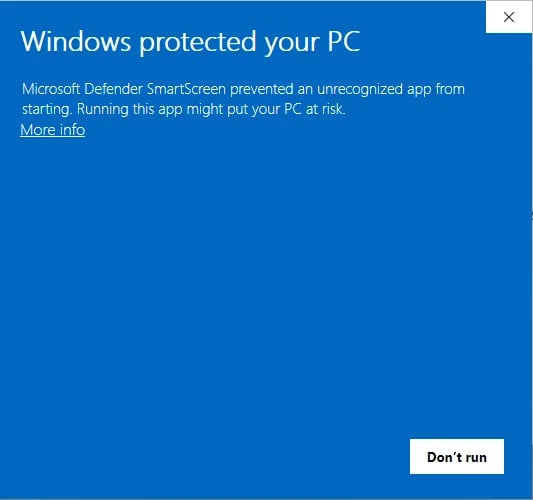
- Windows
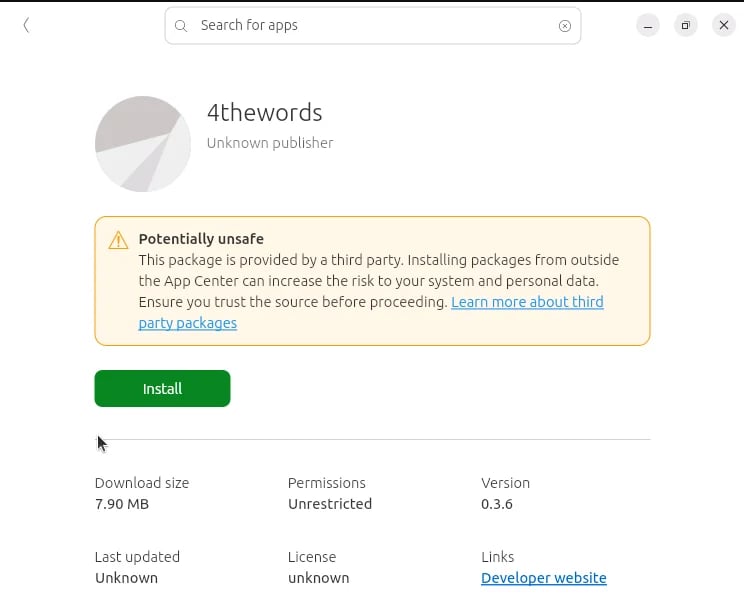
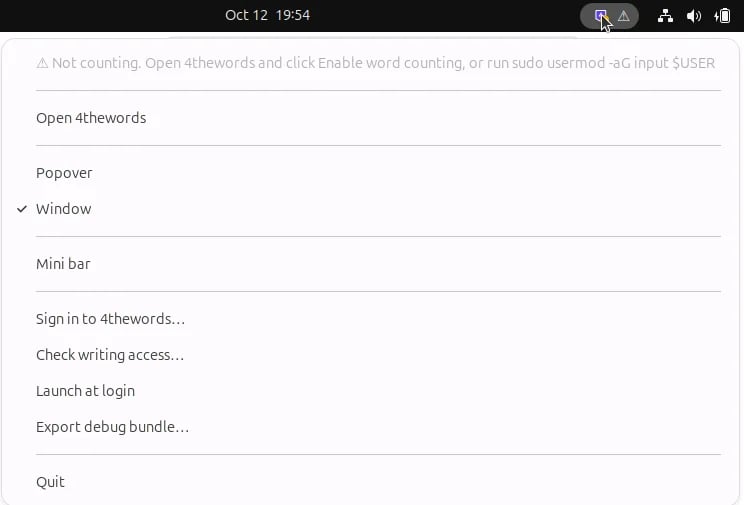
- Linux
Three steps, about two minutes.The app lives in the menu bar (the 4thewords shield) and in the Dock.
1
Drag 4thewords into Applications
Open the
.dmg file. A window shows the 4thewords icon and your Applications folder. Drag the icon onto the folder, then open 4thewords from Applications.If you open it straight from the disk image, the app offers to move itself. Click Move to Applications and it reopens from there.2
Turn on word counting
4thewords opens a welcome window. Click Turn on word counting. macOS then asks about Accessibility: click Open System Settings and switch 4thewords on. On macOS 11 and 12, open System Preferences → Security & Privacy → Privacy → Accessibility instead.The welcome window turns green and says Word counting is on as soon as the switch is on.
3
Allow notifications
The welcome window asks once. Allow them if you want battle results, your daily streak, and a heads-up when your session expires.
Stuck on a Mac?
Nothing counts
Nothing counts
Open System Settings → Privacy & Security → Accessibility and check that 4thewords is switched on. If the welcome window doesn’t turn green after you switch it on, quit 4thewords from the menu bar and open it again.
macOS says it can't verify the app
macOS says it can't verify the app
Download the file again from the 4thewords desktop page and check that it finished downloading. If macOS still blocks it, open System Settings → Privacy & Security, scroll to Security, and click Open Anyway next to 4thewords.
Signing in
1
Click Sign in
Your browser opens 4thewords. New to 4thewords? Create a free account on the same page.
2
Sign in and approve
If the browser asks whether to open 4thewords, say yes. You land back in the app, signed in.
3
Use the code if needed
If you don’t land back in the app, the page shows a connection code that starts with
4TWC-. In the app, click Paste a connection code instead and paste it.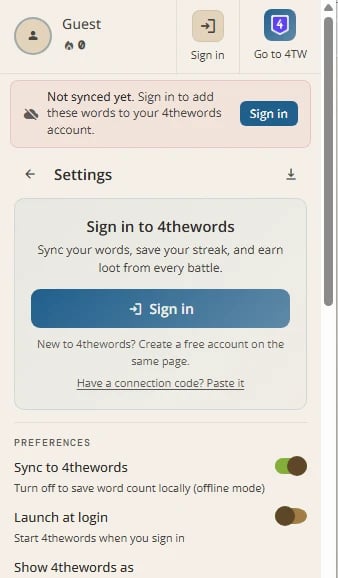
Keeping the app up to date
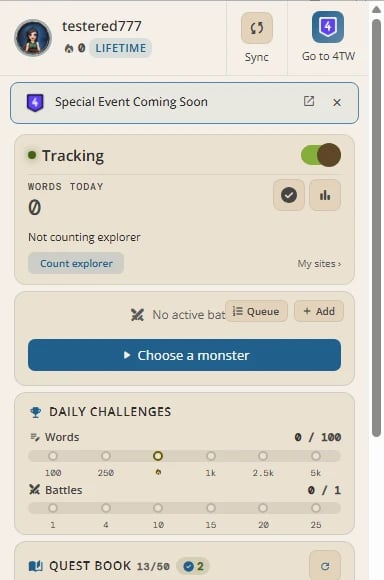
The app checks for updates when it starts and every few hours after that. It downloads a new version quietly, then asks before it restarts.Where to find it: 4thewords icon → Settings → Check for updatesWhen an update is ready, a banner says Version X is ready with two buttons:
- Restart now. The app saves your words, installs the update, and reopens.
- Later. The update installs when you next quit the app (Mac) or the next time it starts (Windows). On Linux, the banner comes back the next time you open the app.
.deb and .rpm updates ask for your administrator password once.
Now and then a version changes something the app needs to keep counting. The banner then says Update required with a single Update now button, and counting pauses until you update.
Frequently Asked Questions
Why does the app need Accessibility or keyboard access?
Why does the app need Accessibility or keyboard access?
The app counts words as you type them, so it needs to notice keystrokes. It turns them into a count on your computer and never stores or sends the text. See Permissions & Privacy.
The connection code says it expired.
The connection code says it expired.
The code works for a couple of minutes, and only while the app is waiting for it. Click Sign in again to get a fresh one.
Can I use the app on more than one computer?
Can I use the app on more than one computer?
Yes. Install it and sign in on each computer. Words from every computer land on the same account.
Does the app start when I turn on my computer?
Does the app start when I turn on my computer?
Not unless you ask it to. Turn on Launch at login in Settings.
I closed the window. Is the app still counting?
I closed the window. Is the app still counting?
Yes. Closing the window leaves the app running in the menu bar or system tray. To stop it completely, open Settings and click Quit app.
How do I sign out?
How do I sign out?
Open Settings and click Disconnect. The app signs out, and the session also disappears from Linked devices on your 4thewords account.
Word Counting & My Sites
Choose which apps and sites count.
Window, Mini Bar & Settings
Pick how the app shows up while you write.