

Where to find it: 4thewords icon → Settings
Window, popover, and Mini bar
Where to find it: 4thewords icon → Settings → Show 4thewords as
1
Pick how the app opens
Show 4thewords as sets what opens when you click the 4thewords icon.
2
Add the Mini bar if you want it
The Mini bar switch sits beside either choice. It adds a slim bar that stays on top while you write.
- Window (the default). Stays open while you write and goes wherever you move it. Keep the window on top decides whether it floats above your other windows.
- Popover. Opens from the menu-bar or tray icon and closes when you click elsewhere.
- Mini bar. A slim bar that stays on top while you write, showing your word count and your battle.
The Mini bar
The Mini bar shows what you need while you write and nothing else.
- Word count. Your total for the day, with a status dot beside it.
- Streak. A flame appears once you have one.
- Battle row. The monster’s health while you’re fighting.
- Counting switch. Beside your word count: a check mark means the app or site in front of you is counting. A red cross means it isn’t, and clicking it starts counting there.
- Buttons. Pause counting stops counting until you click again, Open App brings up the app, and Close puts the bar away.
On Linux with Wayland, desktops don’t let apps stay on top of other windows. The Mini bar and Keep the window on top work, but they can sit behind your editor. An X11 session avoids this.
The menu-bar and tray icon
Click the 4thewords icon for the menu.- Open 4thewords. Brings up the app.
- Window, Popover, Mini bar. Switch how the app shows up.
- Re-centre the mini bar. Moves the Mini bar back to the middle of your screen.
- Sign in to 4thewords. Starts sign-in.
- Grant Accessibility access. Mac only. On Windows and Linux the same slot reads Check writing access.
- Launch at login. Starts the app when you sign in to your computer.
- Check for updates. Looks for a new version.
- Export debug bundle. Saves a zip for support.
- Quit. Closes the app and stops counting.
Settings reference
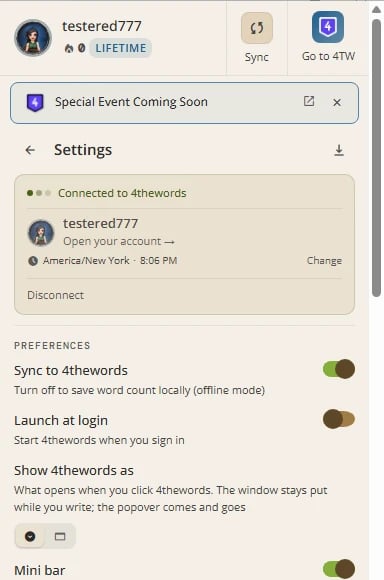
Open Settings from the 4thewords icon. Every setting is below, grouped as the app groups them.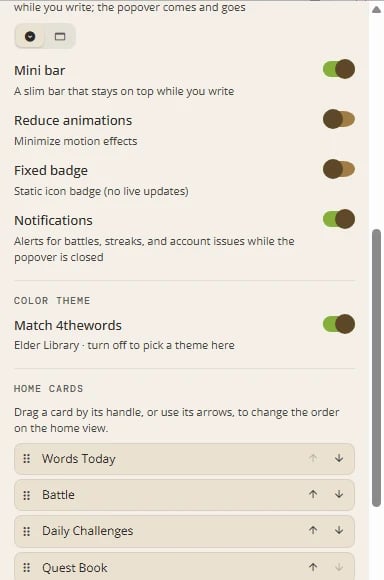
- Sync to 4thewords. On by default. Turn it off to save your word count only on this computer (offline mode). Turn it back on to send your progress again.
- Launch at login. Starts 4thewords when you sign in to your computer.
- Show 4thewords as. Window or Popover. See above.
- Keep the window on top. Window only. Keeps it above your other windows while you write.
- Mini bar. Shows the slim bar.
- Reduce animations. Minimizes motion effects.
- Fixed badge. Shows a static icon badge instead of live updates.
- Notifications. Alerts for battles, streaks, and account issues. Open notification settings takes you to your system’s settings.
- Home cards. Drag a card by its handle, or use its arrows, to change the order on the home view.
- Match 4thewords. Follows your account’s theme. Shown when you are signed in.
- Seven theme swatches. Obsidian, Pearl, Cave, Charcoal, Elder Library, Mining Site, and Stone City.
- Pasted words. Always, Ask, or Never. Ask needs a 4thewords account. See Word Counting & My Sites.
- Track apps & sites. Adds a breakdown of your words by app and site. Off by default. See Permissions & Privacy.
- My sites. Choose the apps and sites that count.
- Privacy. A short note on what the app counts and what it never stores or sends.
- Export debug bundle. Saves a zip of the app’s log and settings to your Desktop. See Troubleshooting.
- Check for updates. Looks for a new version. See Installing & Signing In.
- Quit app. Closes the app completely and stops counting.
- Remove from this computer. Removes 4thewords from this computer. See Uninstalling.
- Help Center. Opens these pages.
Frequently Asked Questions
What's the difference between the window and the popover?
What's the difference between the window and the popover?
The window stays open until you close it, so it works well beside your draft. The popover opens from the icon and closes as soon as you click elsewhere.
Can I use the Mini bar and the window together?
Can I use the Mini bar and the window together?
Yes. The Mini bar switch works beside either choice. Click Open App on the Mini bar to bring up the window.
The Mini bar disappeared.
The Mini bar disappeared.
Choose Re-centre the mini bar from the menu-bar or tray menu, or switch Mini bar off and on in Settings.
Can I match the app's theme to my 4thewords theme?
Can I match the app's theme to my 4thewords theme?
Yes. Choose Match 4thewords under Color Theme and the app follows your account’s theme.
I turned Sync to 4thewords off. What happens to my words?
I turned Sync to 4thewords off. What happens to my words?
The app keeps counting and saves the total on your computer. A banner reminds you that nothing is being sent. Turn sync back on and your progress goes to your account.
How do I stop the app completely?
How do I stop the app completely?
Open Settings and click Quit app, or choose Quit from the menu-bar or tray menu. Closing the window alone leaves the app running and counting.
Word Counting & My Sites
Choose which apps and sites count.
Permissions & Privacy
What the app can see, and what it never stores or sends.